Back up all data blocks of an S7
You want to back up all data blocks of your S7 without selecting each one? With DataSuite you write the values to a file at regular intervals. If the whole controller including its program needs a backup, SPSDataBackup is made for that.
Back up values or the whole controller?
“Backing up data blocks” can mean two things. Before you start, think about what you want to get back if something goes wrong.
The values in the data blocks: recipes, parameters, counter readings. You want to record which values were in the controller at a given time and write them back when needed. DataSuite does this. The next sections show how.
The whole controller: program, blocks and data. You want to restore an earlier state after a CPU failure or a failed software update. That is what SPSDataBackup is for, our backup software for Siemens S7 controllers. It is in development and can be pre-ordered from PLC DataTools. You can read more about it further down.
Back up a data block with DataSuite
DataSuite reads a data block from the controller and saves all variable names with their values to a file. The trigger action for this exports a data block. It is included from the STANDARD edition.
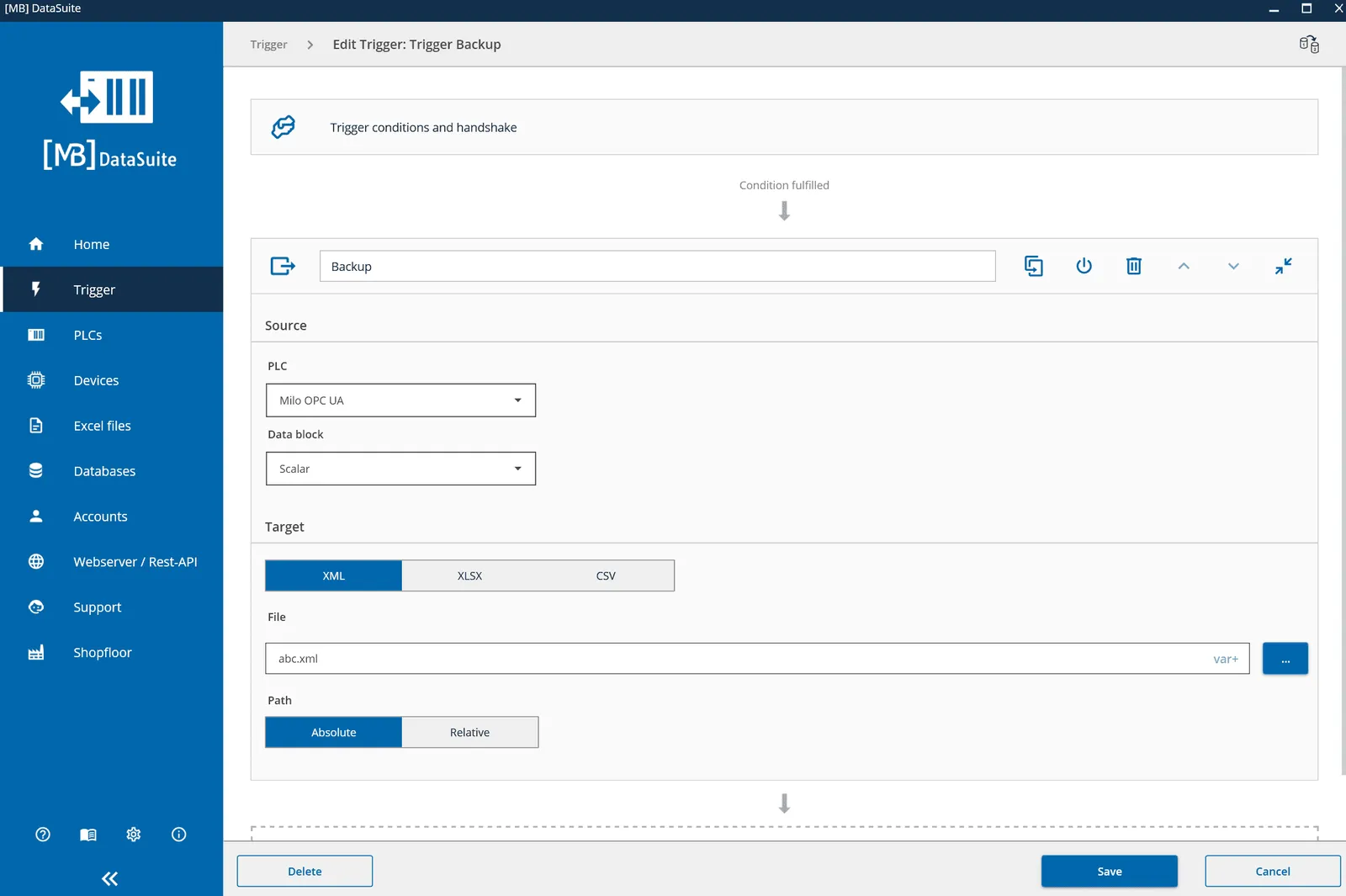
- Create a new trigger under “Trigger”. The condition decides when the backup runs: for example once a day, after a recipe change or when a bit in the controller is set.
- Add the export action. Under “Source”, select the PLC and the data block.
- Under “Target”, choose XML, XLSX or CSV and enter the file. With a variable in the file name, such as the date, each backup creates its own file.
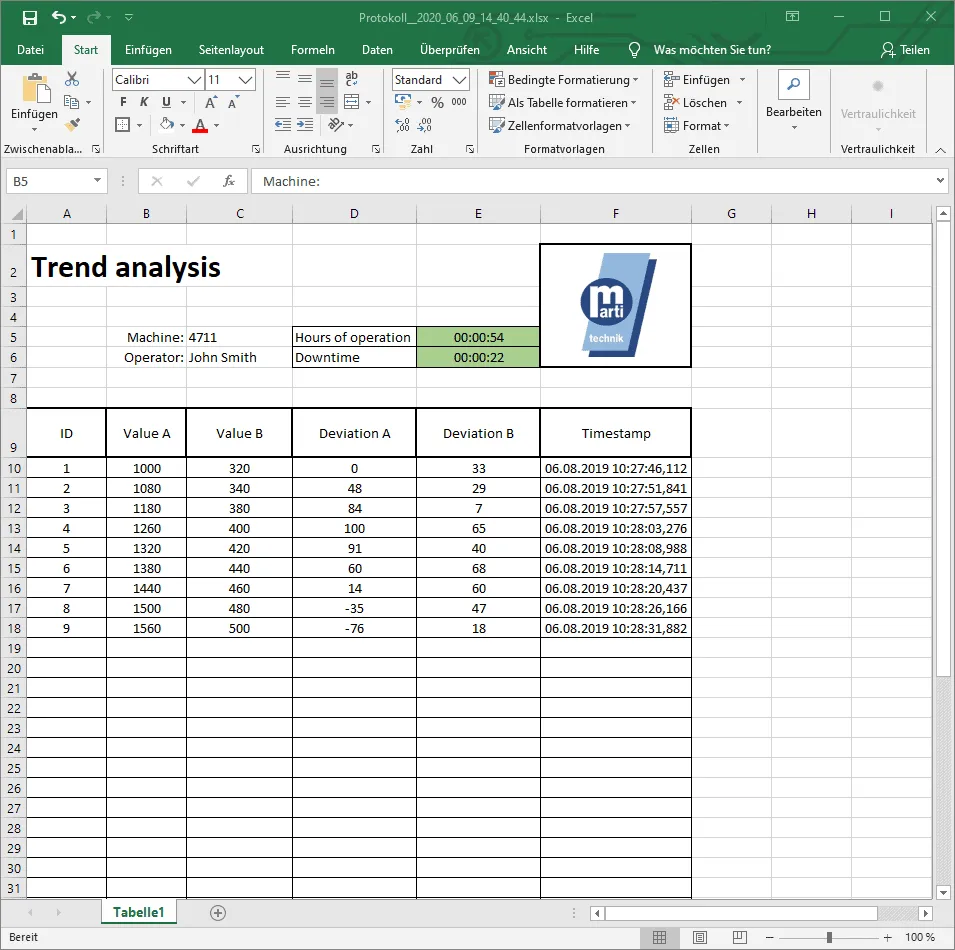
Create an XLSX file beforehand under “Excel files”. For XML, simply enter the path. Microsoft Excel does not need to be installed.
Back up all data blocks at once
Normally you select a single data block in the action. With many data blocks this soon becomes confusing. An OPC UA connection makes it easier: you import a whole branch of the OPC UA server as one object. DataSuite shows this object like a data block, and it contains all variables below it.
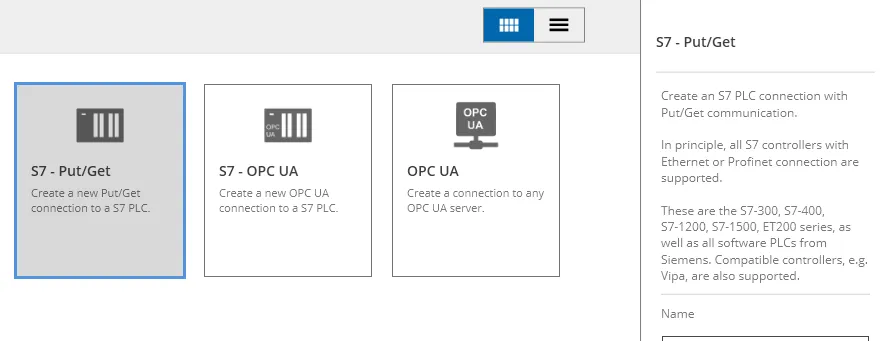
- Create an OPC UA connection to your S7 under “PLCs”. How to activate the controller’s OPC UA server is explained in the article Optimised data blocks via OPC UA.
- When adding a data block, choose “Import objects” instead of “Import data blocks”.
- In the tree view, select the top node that contains all the variables you want to back up.
- Select this object as the data block in the export action.
- Save the trigger. It now backs up all variables below the selected node to one file.
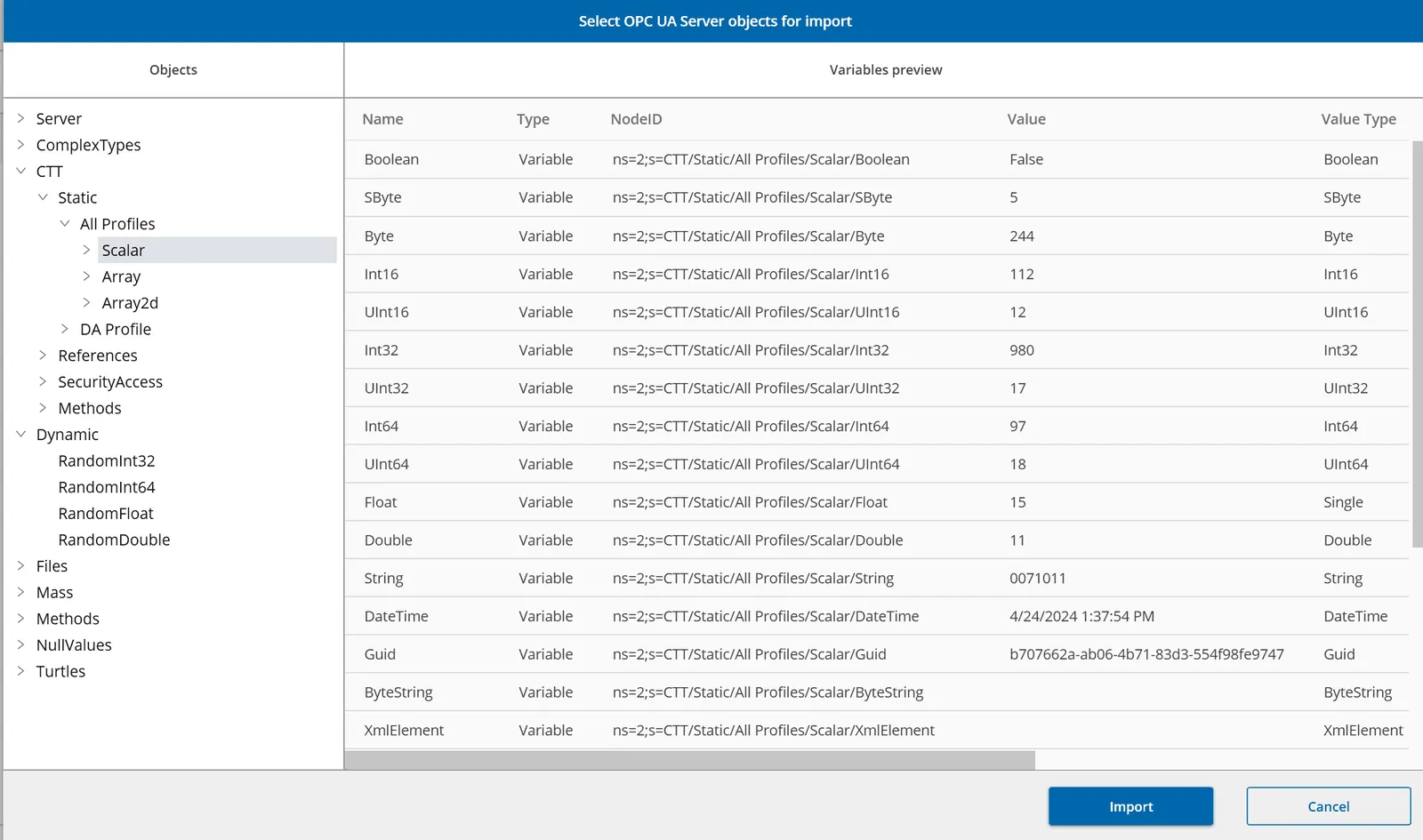
If data blocks are added to the controller later, simply import the object again.
Restore saved values
The way back is the import action. It reads a previously exported file and writes the values to the data block. This lets you load a saved recipe or restore parameters that someone overwrote by mistake.
- Create a trigger, for example with a bit in the controller as the condition.
- Add the import action and select the format and the file under “Source”.
- Under “Target”, select the PLC and the data block.
Back up the whole controller with SPSDataBackup
DataSuite backs up values. It does not back up the controller’s program, that is organisation blocks, function blocks and functions. After a CPU failure, however, that is exactly what you need. This is why we are developing SPSDataBackup.
SPSDataBackup runs on a PC or server in your network. It finds the controllers with a network scan and backs them up on a schedule or on a signal from the controller. It backs up S7-300 and S7-400 block by block. It backs up programs of S7-1200 and S7-1500 as a complete CPU image; whether this is possible depends on the model and firmware.
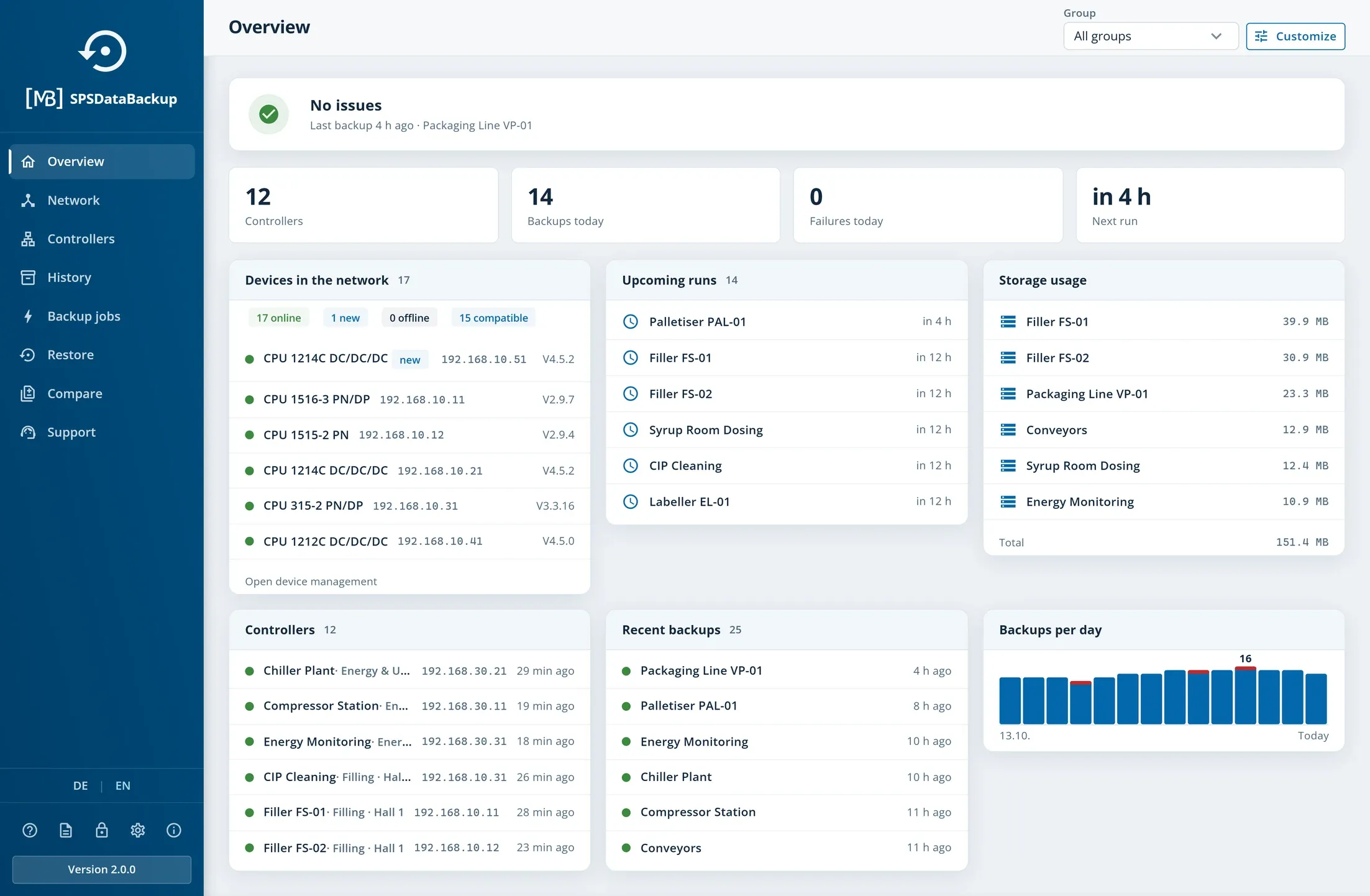
Each controller gets a version history. You can compare two states, for example before and after a software update. A wizard guides you step by step through the restore. Which controllers are supported and where the limits are is explained in the article Back up PLC data blocks automatically.
Conclusion
With DataSuite you back up the values of your data blocks regularly to an XML, XLSX or CSV file and write them back when needed. Using an OPC UA connection, you capture all data blocks with a single action. If the whole controller including its program needs a backup, SPSDataBackup is the right tool.