PUT/GET with optimised data blocks of a Siemens S7
Your S7-1200 or S7-1500 returns no values via PUT/GET? Usually optimised data blocks are the reason. We show you two ways to get to your data anyway.
Why PUT/GET cannot read optimised data blocks
PUT/GET accesses the controller's memory by absolute address, that is by data block, byte and bit. In an optimised data block the controller arranges the variables itself, so there is no fixed address. This is why a PUT/GET client can neither read nor write optimised data blocks.
For data exchange with an S7-1200 or S7-1500 you therefore have two options:
PUT/GET: The data is stored in non-optimised data blocks, and PUT/GET is permitted in the controller. No additional licence is needed.
OPC UA: The controller provides its data via its OPC UA server. Optimised data blocks stay as they are. This requires an OPC UA runtime licence from Siemens.
Which option suits which situation is compared in the article PLC-PC data exchange without an OPC server.
Option 1: PUT/GET with non-optimised data blocks
You need an S7-1200 or S7-1500 with an Ethernet (Profinet) interface, the TIA Portal and DataSuite version 3 or later.
Create a data block for data exchange
A separate, non-optimised data block that DataSuite uses only for data exchange has proven itself. Your existing optimised data blocks then stay unchanged, and the rest of the PLC program does not need to be adapted.
This is how you switch off optimisation for a data block:
- In the TIA Portal, right-click the data block under “Program blocks” and choose “Properties”.
- Under “Attributes”, clear the option “Optimized block access”.
- Compile the project and download it to the controller.
If you convert an existing data block, the addresses of its variables change. In that case, check every part of the program that accesses it.
Permit PUT/GET in the controller
On the S7-1500, and on the S7-1200 from firmware V4.0, PUT/GET is blocked by default.
- Open the device configuration of the controller.
- In the properties, select “Protection & Security”.
- Set the access level to “Full access”.
- Under “Connection mechanisms”, enable “Permit access with PUT/GET communication from remote partner”.
- Download the configuration to the controller.
Connect DataSuite to the controller
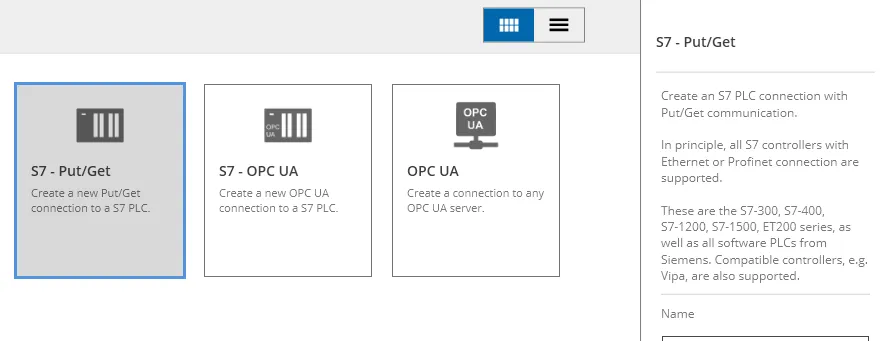
- In DataSuite, click “Create new PLC” under “PLCs” and choose the connection type “S7 - Put/Get”.
- Enter the IP address of the controller. Rack and slot are usually 0 and 1 on the S7-1200 and S7-1500.
- Click “Test connection” to check that the controller responds.
The easiest way to add the variables is from the TIA Portal: export the data block there as a source file and import it into DataSuite. You can also create individual variables by hand.
Option 2: Optimised data blocks via OPC UA
With OPC UA you read and write optimised data blocks directly by variable name. The connection is encrypted, and the controller requires a login. You need an S7-1500 or an S7-1200 with an OPC UA server, a suitable OPC UA runtime licence from Siemens, the TIA Portal and DataSuite version 3 or later. Port 4840 must be open on the network between the PC and the controller.
Activate the OPC UA server in the controller
- In the TIA Portal, open the device configuration of the controller and select “OPC UA” in the properties.
- Under “Server”, enable “Activate OPC UA server”. The default port is 4840.
- Under “Security”, set up at least user name and password authentication. We also recommend an encrypted connection.
- Under “Runtime licenses”, select the OPC UA licence you purchased.
- Download the configuration to the controller.
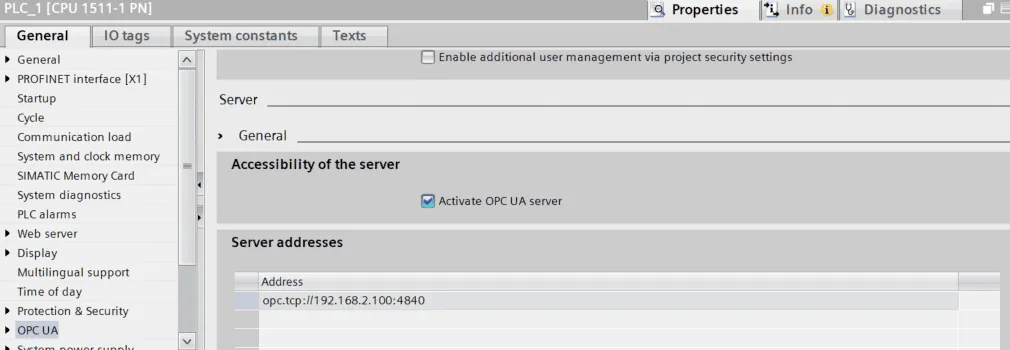
For DataSuite to see a variable, it must be marked as “Accessible from HMI/OPC UA” in the data block. This is the default for new variables. On the S7-1200 you also create a server interface and drag the required variables into it. Read more in the article How to use OPC UA with a Windows client.
Connect DataSuite and import data blocks
- Click “Create new PLC” under “PLCs” and choose “S7 - OPC UA”.
- Enter the IP address and port of the controller.
- Choose the security policy that matches the setting in the controller and enter user name and password.
- Test the connection and save.
- In the data blocks, choose “Import data blocks” and select the blocks you need. DataSuite reads them, including their variables, directly from the controller.
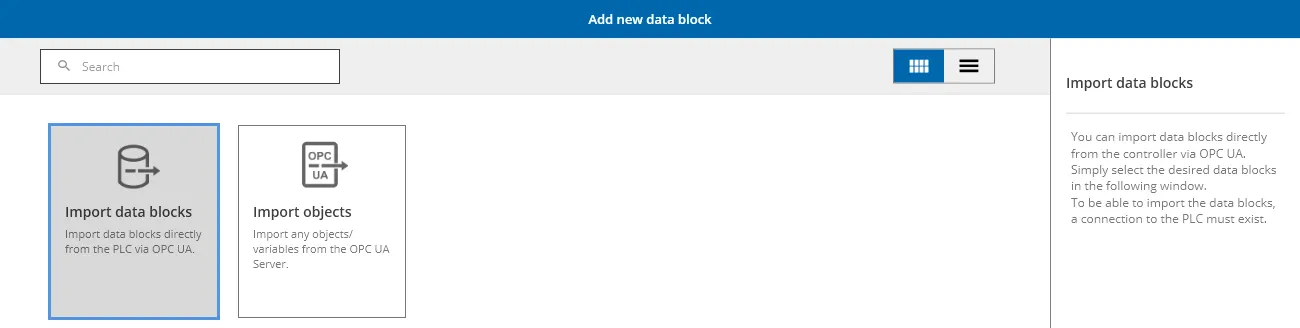
If variables are added in the controller later, simply import the data block again.
Writing data to Excel or an SQL database
Once the connection is set up, you work with the variables in the same way, whether they come via PUT/GET or OPC UA. What happens to the data is defined in DataSuite with a trigger: it reacts to a condition, for example every 10 seconds or a bit in the controller, and then runs its actions.
Store data from the controller in Excel
- Create a new file under “Excel files” or use a template. Path and file name may contain variables, such as the date.
- Choose whether an existing file is overwritten or continued, or whether a new file with a sequential number is created.
- Create a trigger with the action “Write data record”, choose the file and sheet and assign the variables to the columns.
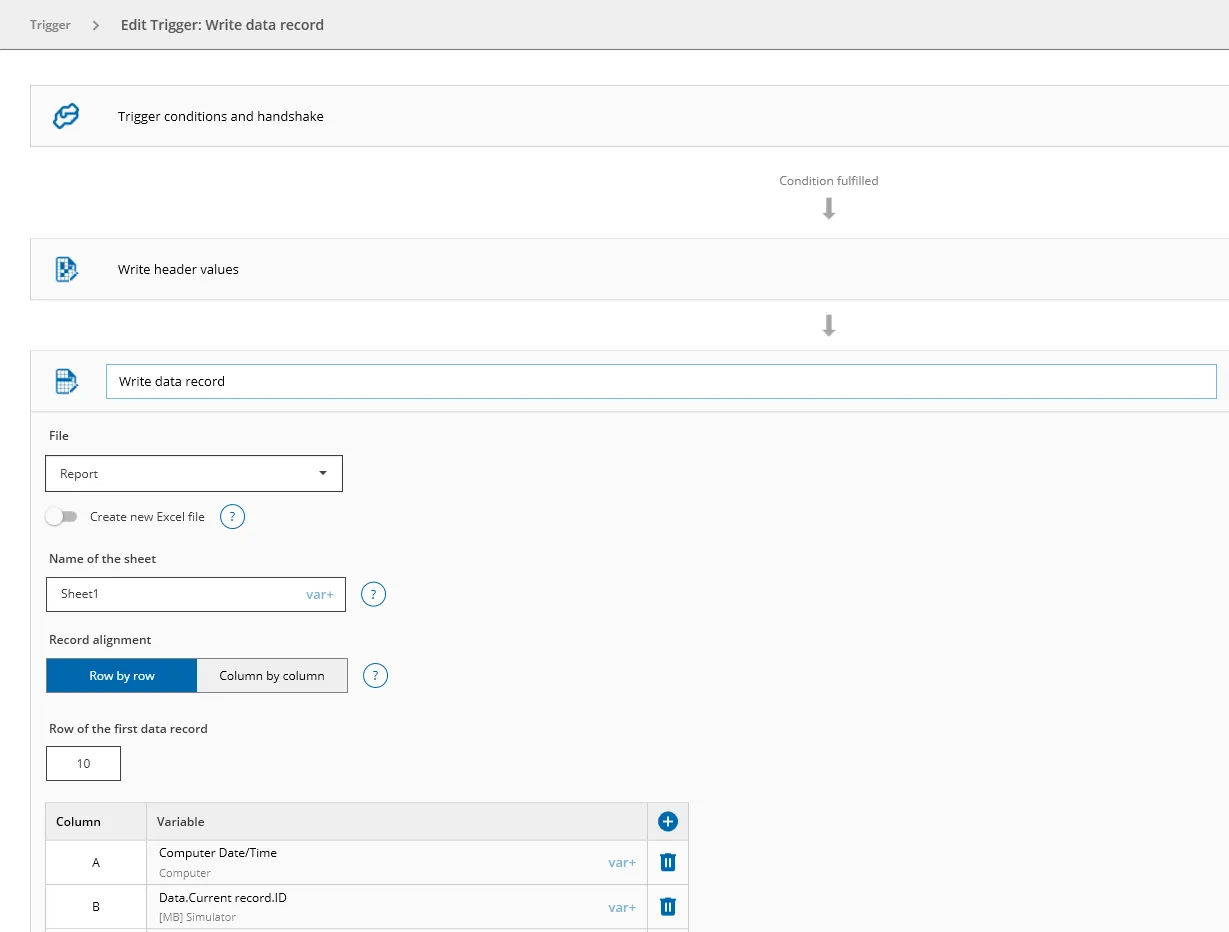
How to prepare the file with headers, logo and formulas is shown in the article Format and use Excel templates. Microsoft Excel does not have to be installed for this.
Write values to the controller
The other direction works the same way: a trigger reads values from an Excel file or database and writes them to a variable in the data block, for example recipes or order data. With PUT/GET, the target variable must be in a non-optimised data block.
SQL database instead of Excel
If the data is to go into a database, create a connection to Microsoft SQL Server, MySQL, MariaDB or PostgreSQL under “Databases”. A trigger then writes the values to a table with an insert or reads them back into the controller with a select. Instructions can be found in the article Connect a PLC to a database in 5 minutes.
Troubleshooting
No connection to the controller
- Does the controller respond to a ping to its IP address?
- PUT/GET: Is PUT/GET permitted, the access level set to “Full access”, and are rack and slot correct?
- OPC UA: Is the server activated and the licence selected? Do security policy, user and password match? Is port 4840 open?
Values do not arrive
- PUT/GET: Is the data block really non-optimised, and has it been downloaded to the controller after the change?
- OPC UA: Is the variable marked as “Accessible from HMI/OPC UA”, and has the data block been imported again after changes?
- Does the variable view in DataSuite show current values? Is the trigger condition met?
If you get stuck, our support team will help you free of charge:
Phone: +49 2742 72927 80
Email: support@mb-datasuite.com
You can test DataSuite free of charge. The manual with detailed instructions is included in the download.
Conclusion
Optimised data blocks cannot be read via PUT/GET. Without an OPC UA licence, create a separate, non-optimised data block for data exchange and permit PUT/GET in the controller. With OPC UA, the data blocks stay optimised and the connection is encrypted. In DataSuite you can use both options side by side and write the data to Excel files or SQL databases.