Format and use Excel templates for machine data
With an Excel template you define the layout, header data and evaluation once. DataSuite fills it with data from your PLC every time it runs.
Why use an Excel template?
Machine data only helps once people can read it. An empty table full of numbers rarely does the job.
A template is an ordinary Excel file that you design to suit your needs. DataSuite writes the values from the controller into the intended cells and saves the result as a new file. The template itself remains unchanged.
Microsoft Excel does not need to be installed for this, because DataSuite writes the xlsx files itself. You can therefore design templates and open the results with Excel or with the free LibreOffice Calc.
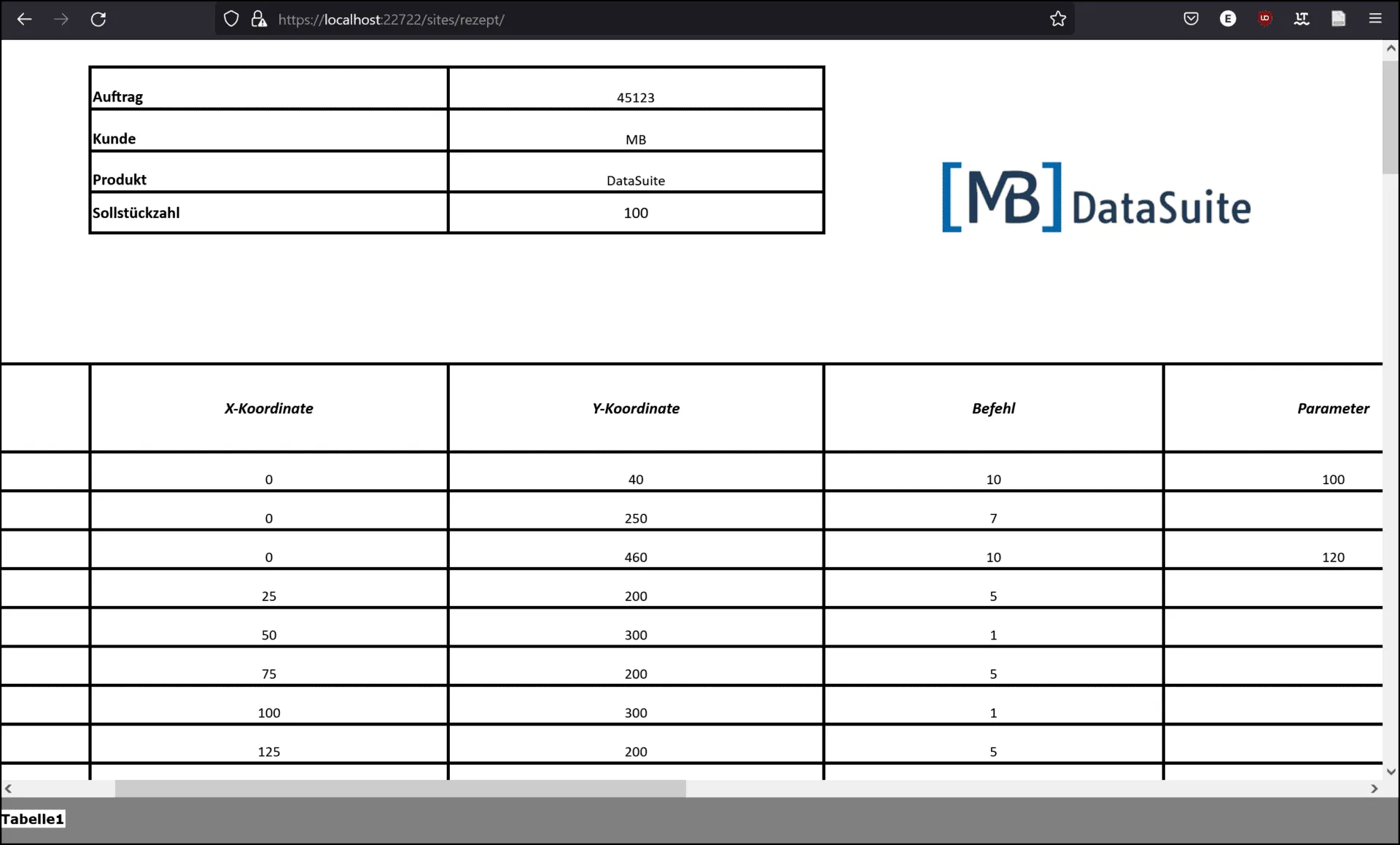
How an Excel file becomes a web page for many users is shown in the article Create a website from machine data.
Before and after
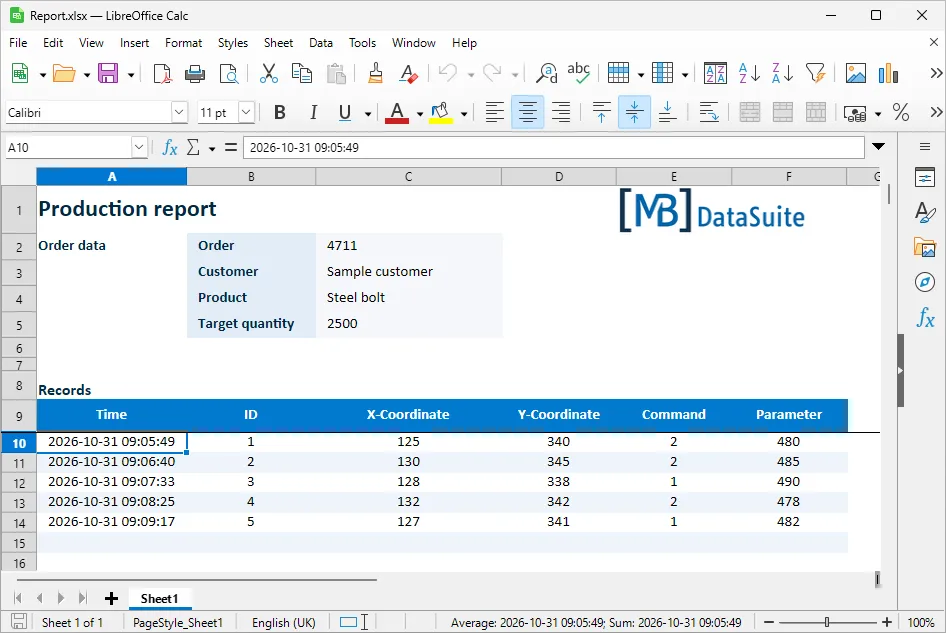
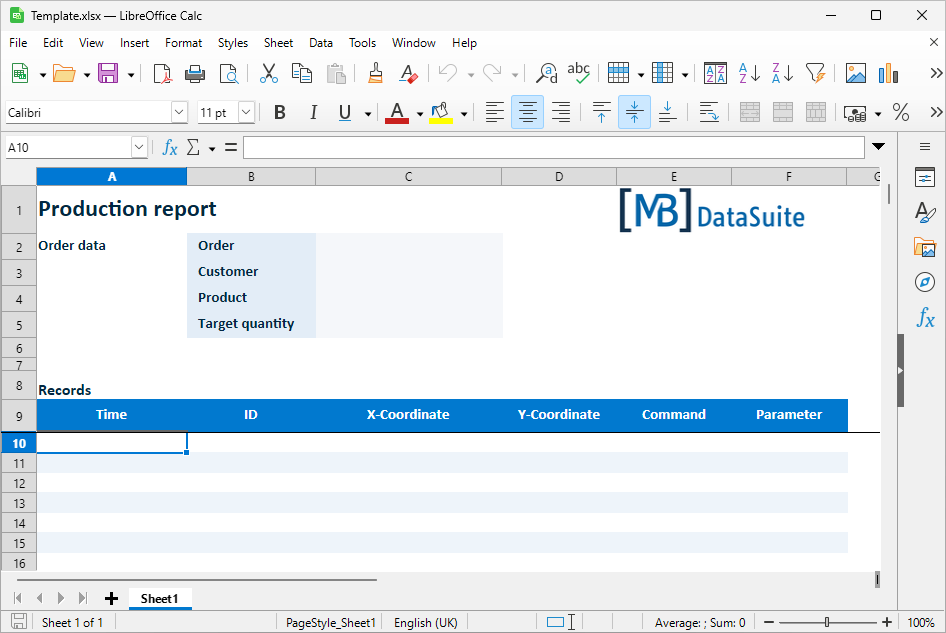
The example shows the template “Template.xlsx” supplied with DataSuite, opened here in LibreOffice Calc. The header contains order, customer, product and target quantity, with the logo on the right. Below it, the table for the records is prepared: borders, column widths and fonts are set, the cells are still empty.
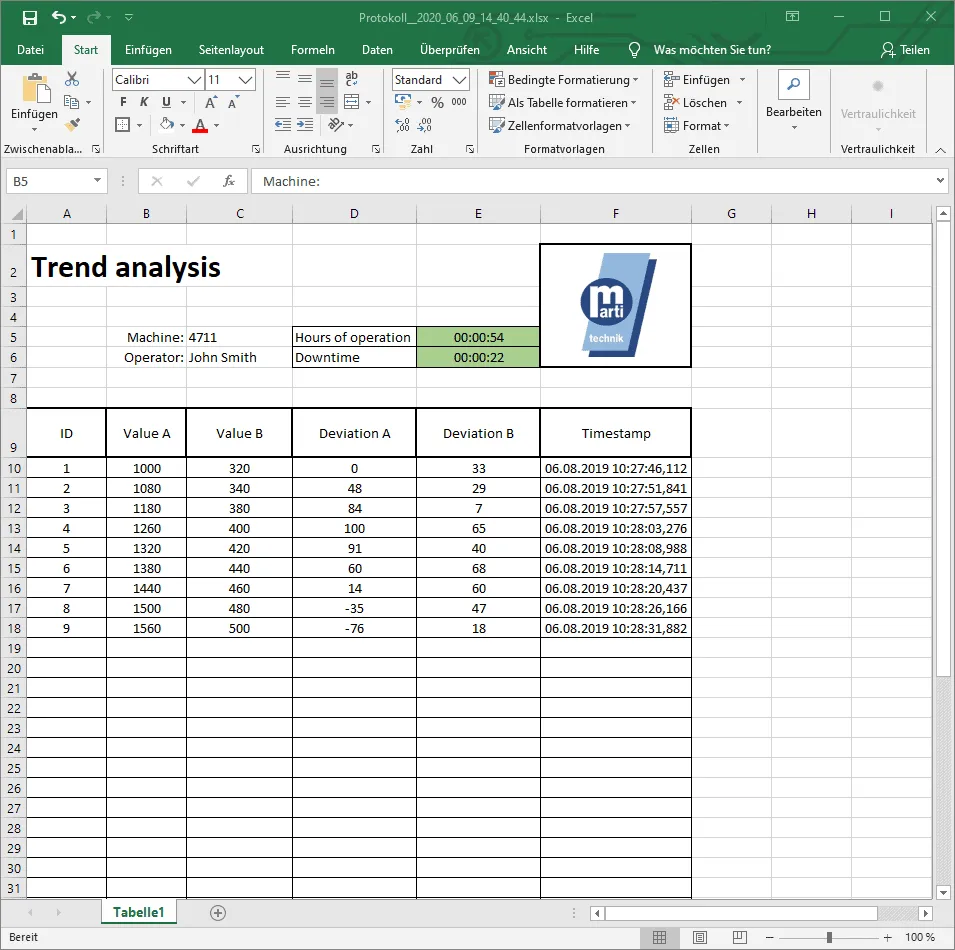
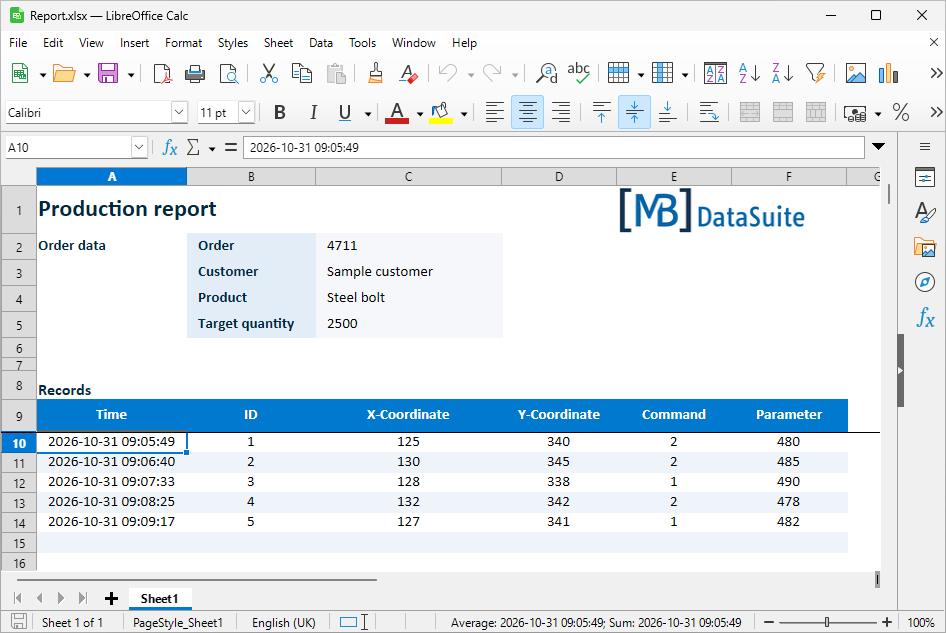
After five runs, DataSuite has entered the order data and five records. In this example the values come from the [MB] Simulator built into DataSuite; each record gets a timestamp. The layout stays exactly as you created it.
Tips for a good template
Excel and LibreOffice Calc offer many ways to lay out a table clearly. These points have proven useful for machine data:
Table structure and column names
If you already know which data you will read, enter the column names directly in the template. If the same template is to be used for different data, DataSuite can also read the column names from the PLC and enter them when the file is created.
Logos and images
Simply drag and drop company logos, drawings or photos into the table. They are carried over into every file that is created.
Formulas and charts
Create totals, averages or charts in the template and let them refer to the rows that DataSuite fills. Every newly created file then contains the evaluation as soon as it is opened.
Sheets
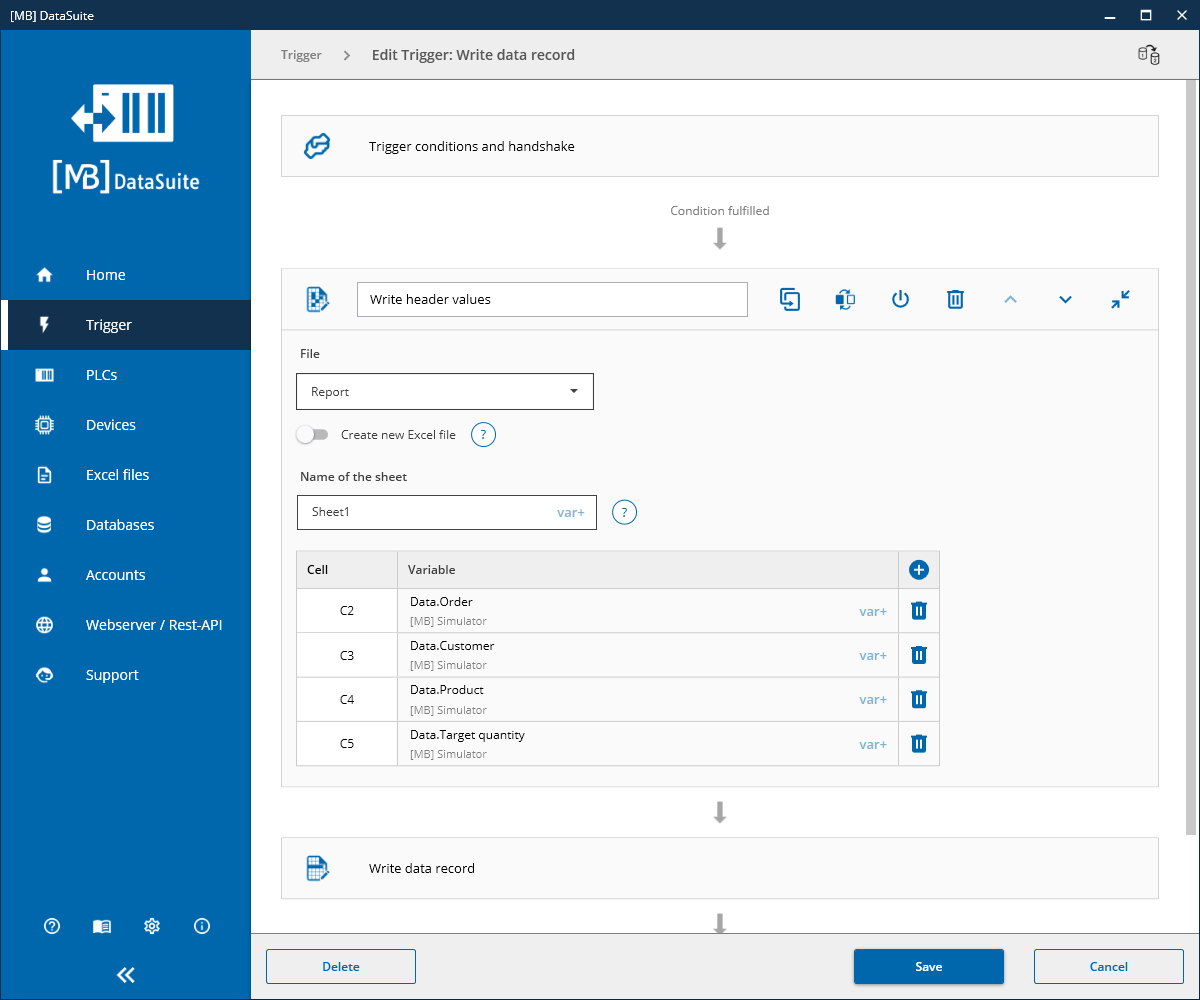
With a lot of data, it helps to spread it across several sheets and give them clear names. In DataSuite you specify the sheet for every reading or writing action. This means that even a single trigger can fill different sheets of one file.
Storing the template in DataSuite
In the settings of an Excel file, switch on “Use template” under “Write access” and enter the path and file name of the template. That is all you need to do.
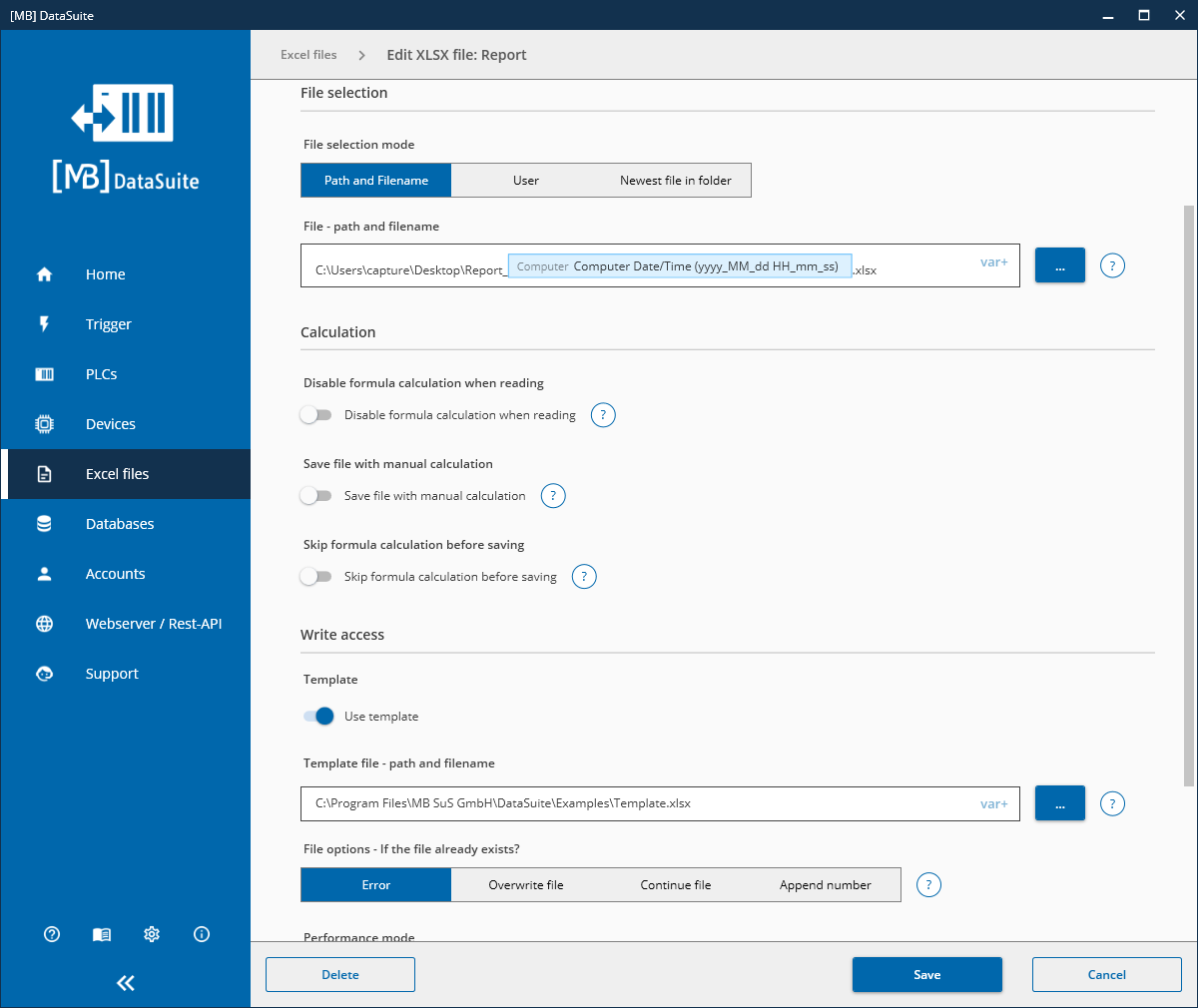
You can store different templates for different purposes, one for each Excel file. This is useful if you capture data from very different plants with a single DataSuite installation.
Naming and storing files automatically
To keep track of many files, DataSuite sets names and storage locations according to your rules. The file selection mode offers three options:
You also decide what happens if a file with that name already exists: report an error, overwrite the file, continue writing to it or append a number to the name.
A network drive is also a suitable storage location. Files then end up in one central place that everyone authorised can access. After creating the file, a trigger can also rename, move, copy or delete it.
You will find a lot more information and settings in the DataSuite manual, which is included in the download.
Further information and help free of charge from our support team:
Phone: +49 2742 72927 80
Email: support@mb-datasuite.com
Conclusion
A well-designed Excel template turns raw data from the controller into a document that colleagues and customers can read straight away. You set it up once; after that, every file is created automatically in the same layout and can be read in Excel and in LibreOffice Calc. How DataSuite writes Excel files with the S7 in general is explained in the article Write Excel files with a Siemens S7 PLC.