Evaluate energy data with Shelly Pro 3 EM in Excel
We show you how to record and evaluate energy consumption data simply and efficiently with DataSuite and a Shelly Pro 3 EM device.
What makes this special is that it all runs locally on your Windows computer. So no cloud, no Linux, no containers, no magic! Simply do it yourself, without the stress.
Shelly X DataSuite 3
Today we will show you how to use a low-cost Shelly energy metering module to record the energy consumption of your machine or plant and save it in an Excel file for further evaluation.
To do this, you need an energy meter. In this example, we use a Shelly Pro 3 EM, which can measure 3 phases of up to 120 amperes each and is available from retailers for around 150 euros. Our DataSuite software is compatible with all Shelly EM and PM devices.

Playing the video transfers data to YouTube (Google). Your consent is required for this.
Your consent applies to all videos on this website and can be withdrawn at any time in the . Privacy policy
Adding a Shelly device
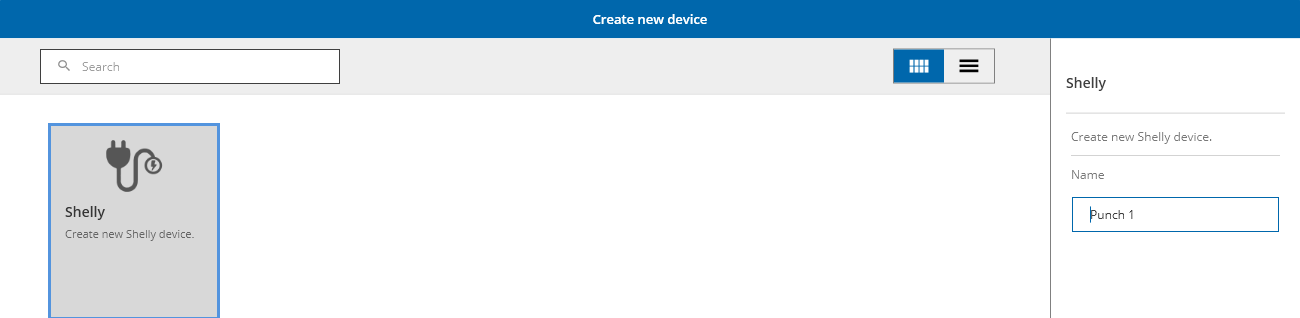
First, we add the Shelly device in the DataSuite software. To do this, select the “Devices” menu item and click on “Create new device”. Select “Shelly”, give the new Shelly device a name, e.g. Punch press 1 energy, and click on “Create”. Then enter the IP address of the Shelly device. Use the “Test connection” button to test the device. Now press “Save”.
Wait a moment until the connection has been established. You can now view detailed information by moving the mouse pointer over the device.
Creating a trigger
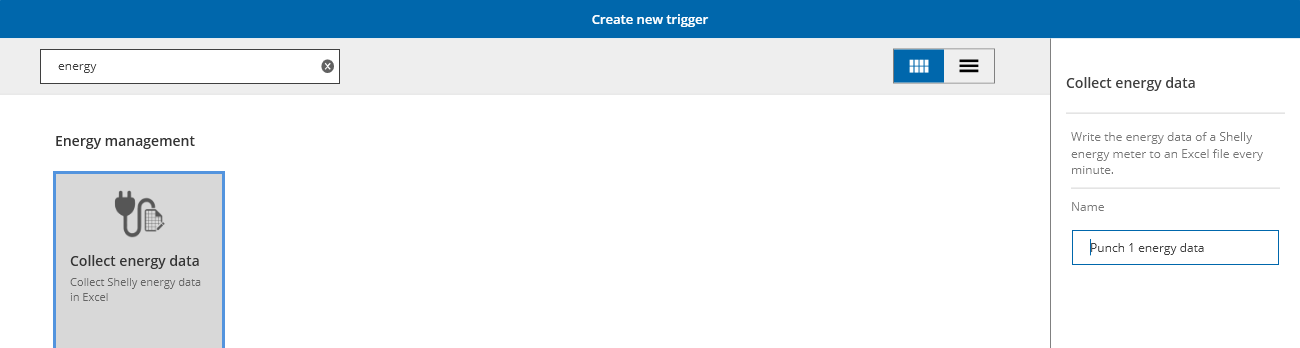
In the next step, we add another trigger to the trigger menu. We have already stored a number of templates for typical use cases for you. Enter “Energy” in the search field and the template “Collect energy data” appears. Give the trigger a name, e.g. “Punch press 1 energy data”.
The trigger has now been created and can be edited if required. The polling interval is set to 1 minute by default.
Some measured values have also already been assigned to columns. You can delete or edit any of these entries. Further assignments can be added by pressing the “Plus” button. The var+ button can then be used to assign the corresponding variable to the Excel column.
At this point, you can also feed further data into the Excel spreadsheet, e.g. quantities produced or machine settings. This later enables a combined evaluation of all the data.
Options with Excel
Once enough data has been collected, it is time for the evaluation. Excel offers flexible options for this. I will now show you how to use formulas and charts in Excel to analyse your energy consumption data efficiently.
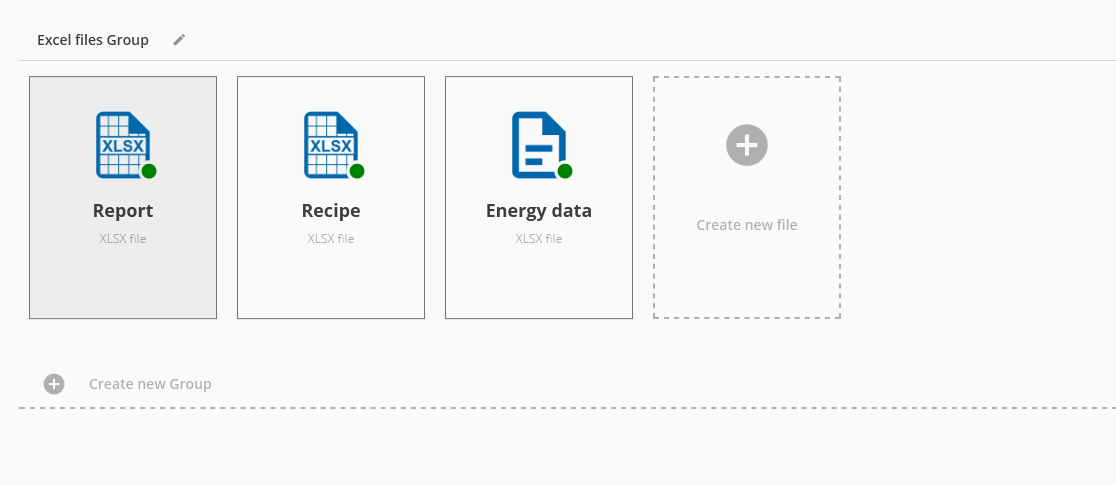
In the example configuration, the Excel file with our data is saved on the desktop. You can adapt the storage location and the file name to your needs at any time under the “Excel files” menu item.
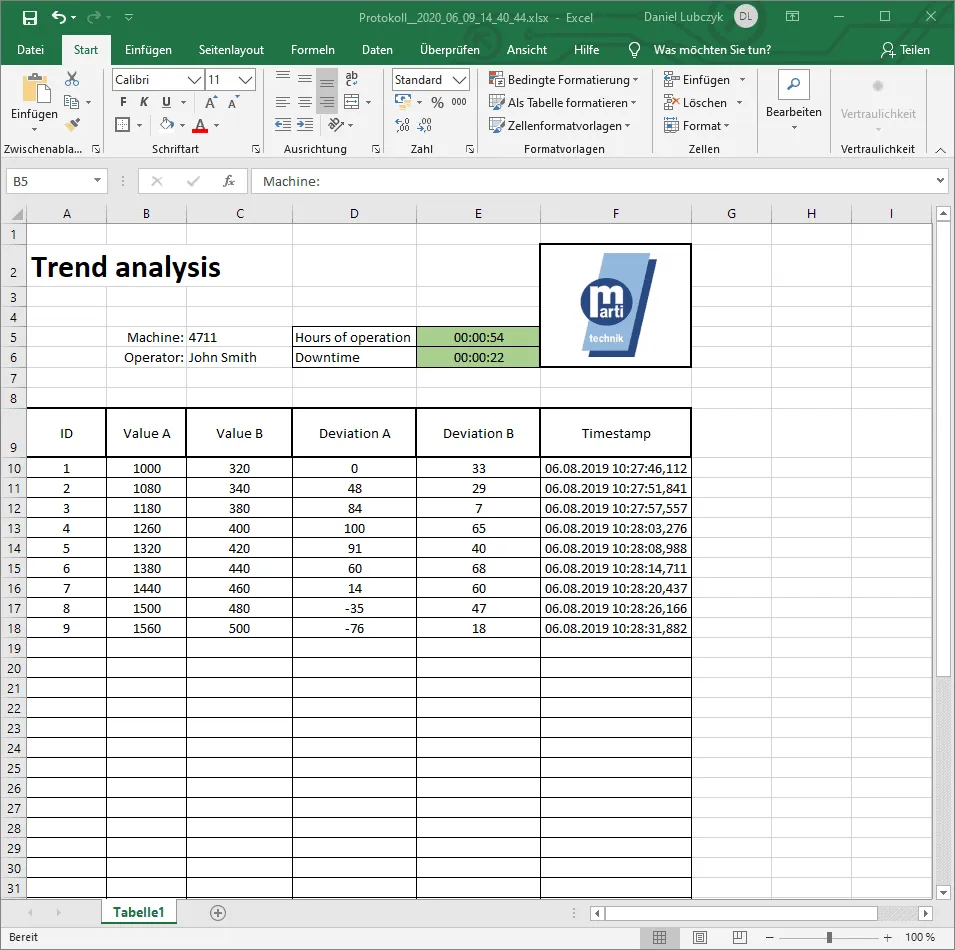
If we now take a look at the generated file, we can see all the data we have collected so far. You can now carry out an evaluation using formulas and charts.
You can then save the file as a template in DataSuite so that every newly generated file already contains the evaluation.