Connect a PLC to a database in 5 minutes
In today’s networked production environments, connecting machines and plants to a database has become indispensable. There are various ways of doing this. Here we show you a simple, secure and proven way of connecting your PLC to an SQL database.
Problem description
See how you can use the DataSuite software to establish a database connection with a PLC. DataSuite is compatible with Siemens S7, Beckhoff and many other types.
And this is how easy it is: first, download the free 30-day trial version of DataSuite from our website. You will find the download link at the top right. The demo version comes with a sample configuration. We do not need it here, so we will ignore the existing triggers and Excel files at this point.
Playing the video transfers data to YouTube (Google). Your consent is required for this.
Your consent applies to all videos on this website and can be withdrawn at any time in the . Privacy policy
Add a PLC
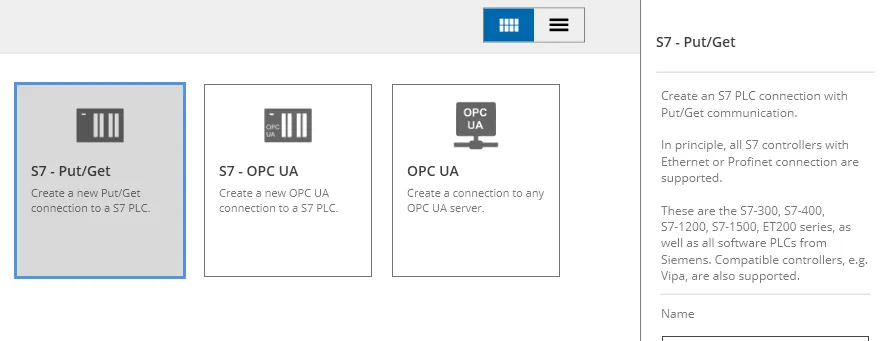
A PLC simulator has already been set up in the software, and we will use it for the following settings. The simulator is a very simple replica of a real PLC and can easily be replaced by a real PLC later on.
Alternatively, you can add a real PLC at this point and carry out all further steps with this PLC.
Connect the database
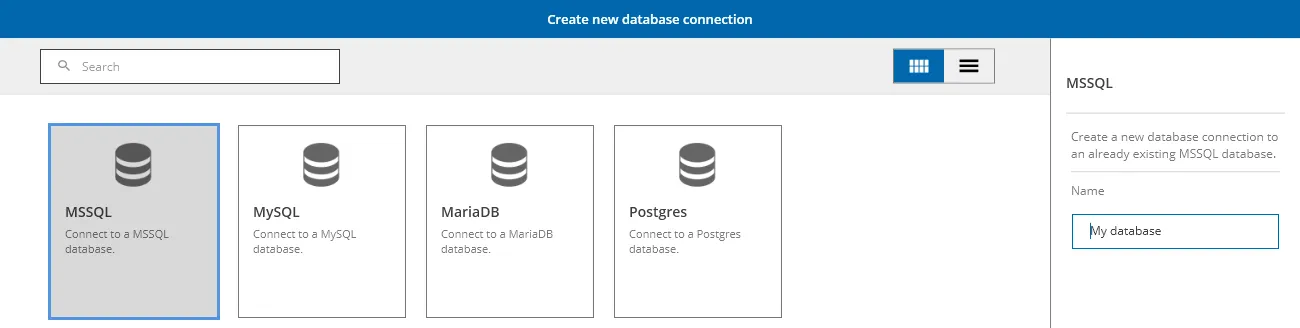
Next, we establish a connection to an existing database. The DataSuite software does not have a database of its own; instead, it connects to existing databases, which can be of the type MS SQL, MySQL, MariaDB or Postgres.
In our case, we use an MS SQL database. You can establish a connection in various ways; you will find all the details in our comprehensive manual. We use an MS SQL Express database installed on the same PC with Windows authentication.
Create a trigger
Finally, we create a trigger that writes the data to our database. For a better overview, we create the trigger group Database. Then we add a new trigger of the type SQL insert.
As the trigger condition, you can choose our proven handshake procedure, for which you will find further information in our manual, or you can select Individual. You can then choose any variable of the connected PLC to trigger the write operation. In our example, we select DB10 address 1 in the simulator. As we are not triggering on an edge in this example, we set an enable condition so that the trigger is not repeatedly triggered unintentionally.
All that is missing now is the write action to the database. To do this, we go to the “Write data record” block, which was created automatically together with the trigger, and assign a variable to each of the columns there. These can come from the connected PLCs, but also from other sources such as Excel files. This means you can solve even complex tasks very easily and flexibly.
Once all columns have been assigned, our configuration is complete and can be tested.
Test the trigger
If you are using a real PLC, now set the trigger condition in your PLC. In our example with the integrated simulator, we set the trigger byte in the simulator to 1.
We can now see in the status of the trigger that it has been triggered. Further details can be found in the trigger log.