How to measure the energy consumption of machines
Is there any reason not to measure energy consumption in production? One good reason could be that the hardware costs more than the potential savings. We took this into account in our research and developed an affordable and simple method of recording the energy consumption of machines.
It’s that easy
Determining the energy consumption of machines
Anyone who wants to measure energy in production also wants to achieve something by doing so. If the purchase and set-up costs are higher than the possible savings, the investment is fairly pointless. When we looked into the subject of energy, our approach was therefore: simple set-up and low-cost hardware that can be connected to machines.
Do we already have suitable software for recording machine data? Exactly. So all that was missing was the hardware, which we eventually found as well. In this blog post, you will find complete instructions for determining the energy consumption of individual machines.
The process
Here’s how: measuring the power consumption of machines
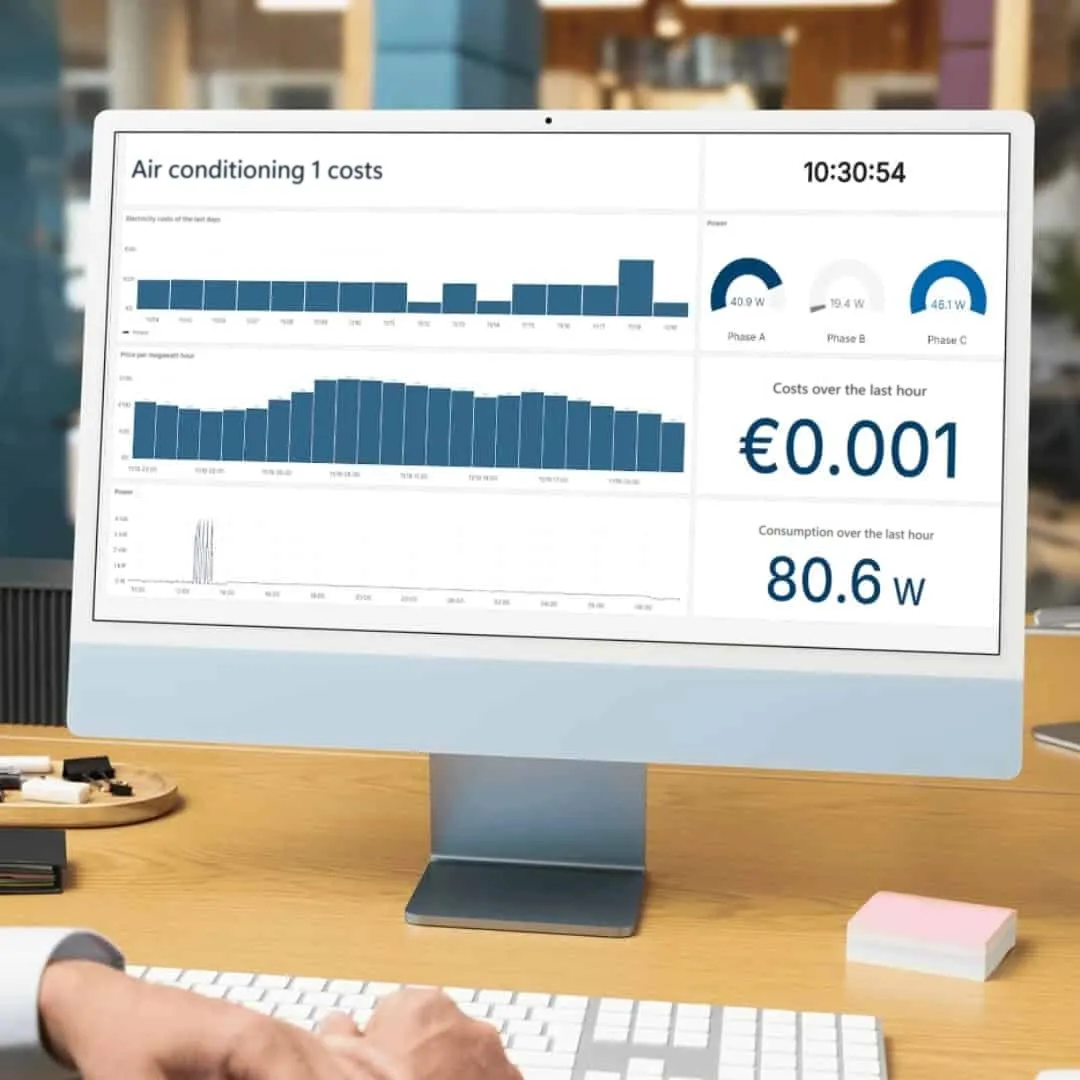
To measure the energy consumption of the machine, a suitable three-phase energy meter must be mounted on the machine and integrated into the network via an Ethernet connection so that the data can be retrieved. This data can be written to an Excel file or stored as a record in a database, for example in order to visualise the recorded energy data afterwards.

The meter we use for this is the Shelly Pro 3 EM. It can measure three phases of up to 120 amperes each and is available from retailers for around 150 euros. This makes it comparatively inexpensive compared with other meters commonly used in the machine-building industry. DataSuite is compatible with all Shelly EM and PM meters, should you decide on a different model after all.
And now on to the step-by-step instructions:
Configuring the energy measurement in DataSuite
Establishing the Shelly connection
Once you have successfully connected the Shelly meters to the machines and integrated them into the network, you can download DataSuite and easily establish a connection to the devices in order to record the energy consumption.
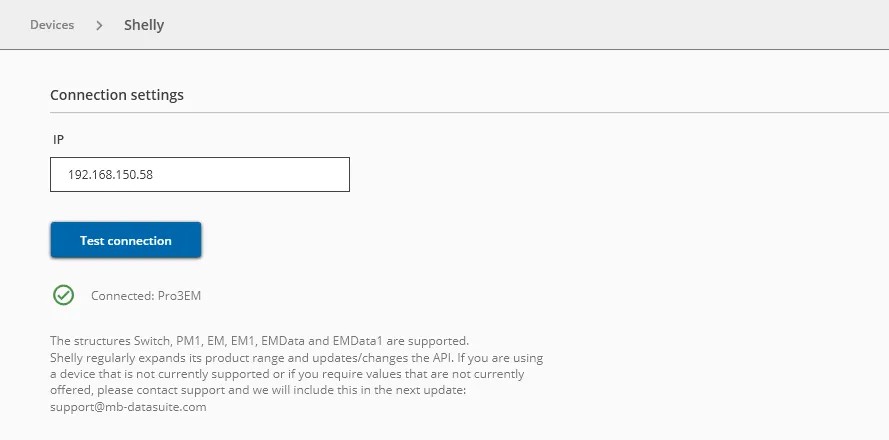
Under the “Devices” menu item, click on “Create new device”. Give the new Shelly device a name, e.g. “Punch press 1 energy”. Enter the IP address of the Shelly device and test the connection. Now save everything. The green dot shows you whether the connection was successful.
Creating and configuring a trigger
In the next step, we add another trigger for data collection under the “Trigger” menu item. We can use a template for this. Enter “Energy” in the search field and the template “Collect energy data” appears. You can now make various settings in this trigger. The polling interval is set to one minute by default, and some Excel columns have already been assigned to an Excel template.
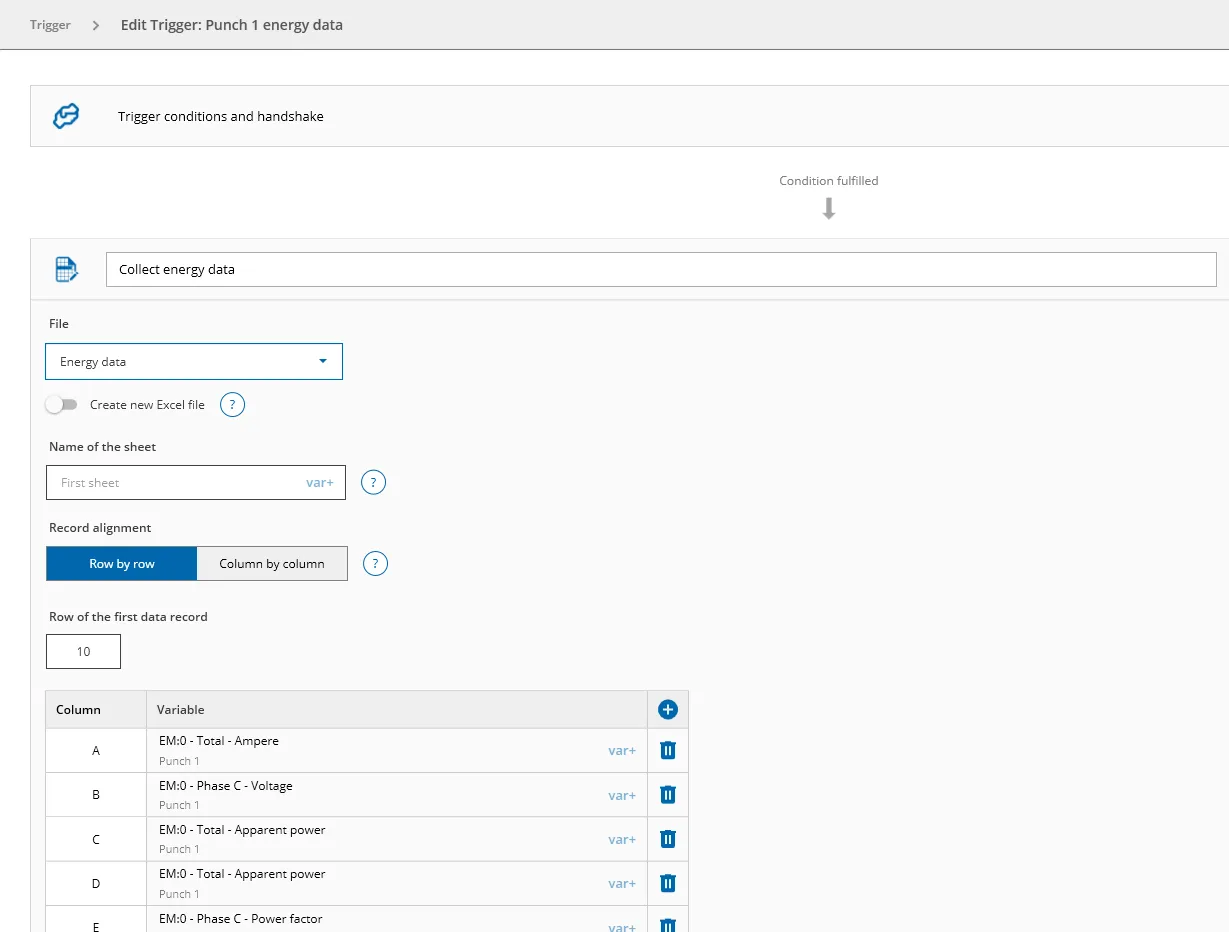
You can now configure everything as you wish. You can either create your own Excel file under the “Excel files” menu item and connect it to the data, or connect a database under “Databases”. In that case, you can adapt the trigger so that the energy consumption of your machine is written to your database as a record. You can find information on the individual steps in the DataSuite manual.
Once you have configured the trigger with a time interval and saved it, a few records with the energy consumption of your machine should already be available. If the trigger does not show a green dot, click on the trigger and then on “Log” to get a detailed view of where there may be an error in the configuration.
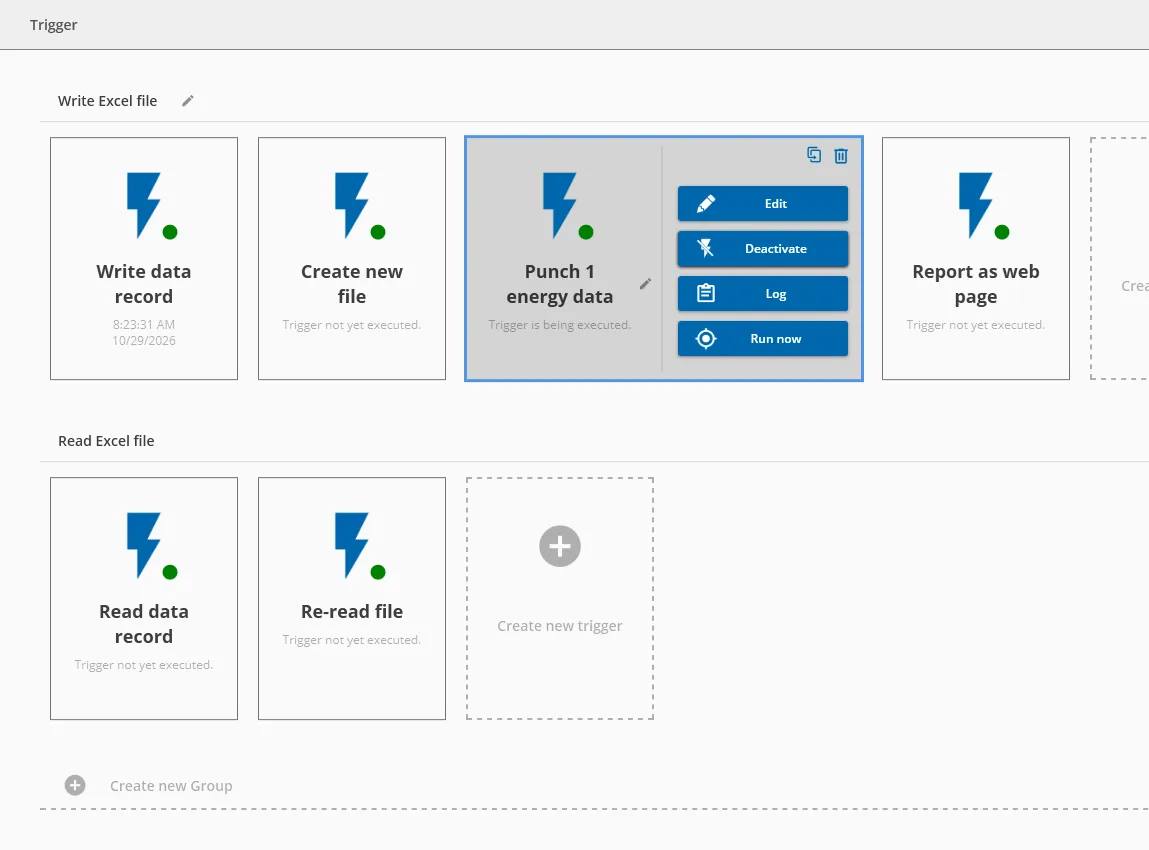
You can find much more information and many more settings in the DataSuite manual, which contains detailed instructions and helpful tips.
Do you have specific questions? Then simply create a support package in DataSuite and describe your request to us. How do I create a support package?
Conclusion
With an inexpensive Shelly Pro 3 EM and DataSuite, you can record the energy consumption of individual machines with little effort: integrate the meter, create the device in DataSuite and configure a trigger from the “Collect energy data” template – the measured values are written automatically to an Excel file or database.