Use OPC UA data for visualisation
OPC UA is a universal standard interface that structures, secures and standardises data. However, this does not yet make the information visible. In this article, we show how OPC UA data can be prepared specifically for visualisation.
That's how easy it is:
Preparing OPC UA data for visualisation
Temperatures, running times, production quantities, energy values and much more. These are all valuable data, but they only unfold their full potential once they have been properly prepared. OPC UA has established itself as the connecting standard for making machine data accessible securely and in a structured way.
But how do you read OPC UA data, how do you process it so that it can be visualised efficiently, and which visualisation tool can you use?
PLC compatibility
Compatible with OPC UA: which controller you need
It does not matter whether it is an OPC UA server or a machine control system with an integrated OPC UA server. Most modern controllers support the industry-standard OPC UA communication. DataSuite, the software we use for this method of data acquisition, is compatible with OPC UA and PUT/GET.
Advantages of OPC UA over PUT/GET
How to capture OPC UA data for visualisation
With our DataSuite software, you can easily establish a connection to an OPC UA server. The program reads data blocks (DB) and then writes the data to an Excel file or a database. As a rule, large amounts of data are collected for a visualisation, which is why a database is recommended. For example, recording just a few sensors with 50 parameters each can overload an Excel file within a few months. A SQL database is much more stable here.

Which databases can be used to visualise OPC UA data?
To visualise OPC UA data, the recorded data can be written to four different SQL databases: MySQL, MSSQL, PostgreSQL and MariaDB.
You can find out how to connect to a SQL database here:
Connect a PLC to a database in 5 minutes
Explainer video: Connecting a machine control system to a database in under 5 minutes (3:58)

Configuring OPC UA in DataSuite
It really is as easy as it sounds. After installing DataSuite, you can create a connection to an OPC UA server. DataSuite can read and write data. Here, however, we focus on the reading process.
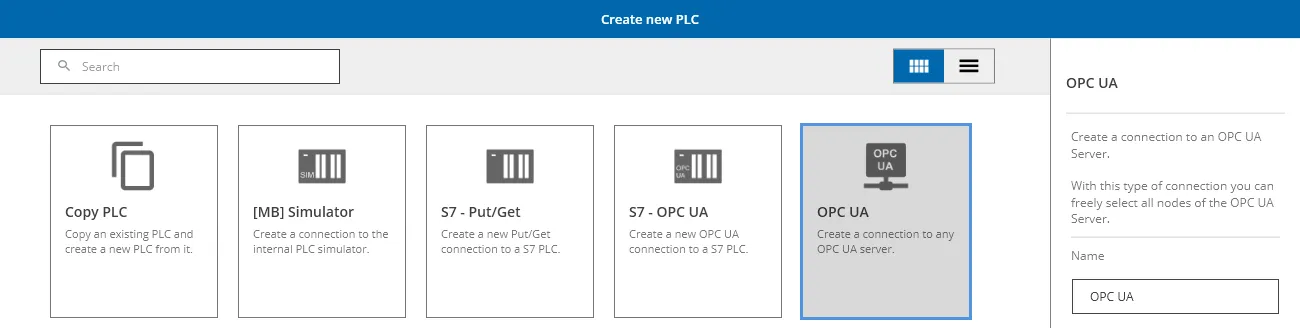
Under the “PLCs” menu item, you can click on “Create new PLC” and choose either “S7 - OPC UA” if it is an S7 controller, or “OPC UA” if it is a simple OPC UA server.
Then enter the IP address and the port (often 4840). Select the encrypted connection as the security mode (if enabled). Finally, enter the user name and password for authentication. Now test the connection and confirm.
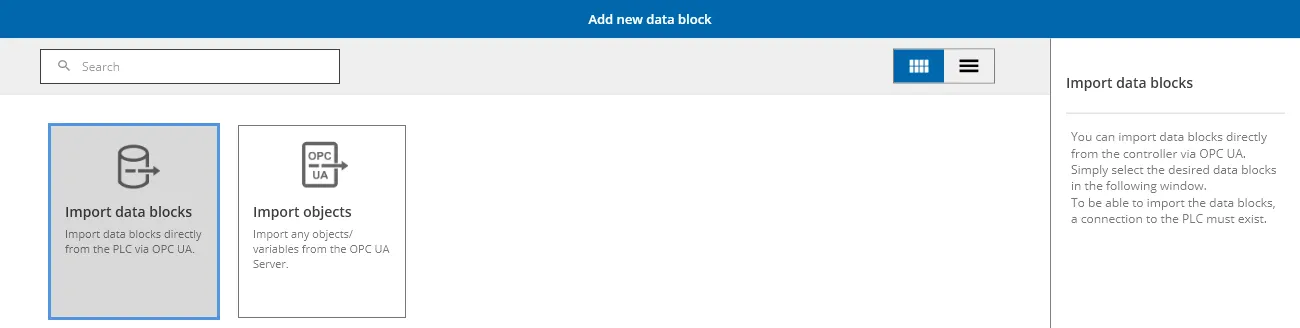
Now click on the newly created OPC UA server, select “Manage variables”, then “Import data blocks” and load the released data blocks.
In just a few steps, you have now successfully connected to your OPC UA server, imported your data blocks and can record data automatically.
Connecting a database for visualisation
Now it is time to define a destination where the recorded data will be stored. As mentioned above, you can choose between an Excel file and a database. In this case, we assume a database, as visualisations often involve large amounts of data.
Prefer Excel after all? Then you can read here how to write PLC data to an Excel file.
Under the “Databases” menu item, we can click on “Create new database connection” and choose between MSSQL, MySQL, MariaDB and Postgres. The set-up is done using a few input fields. Here, too, a green dot indicates whether the connection has been successful.
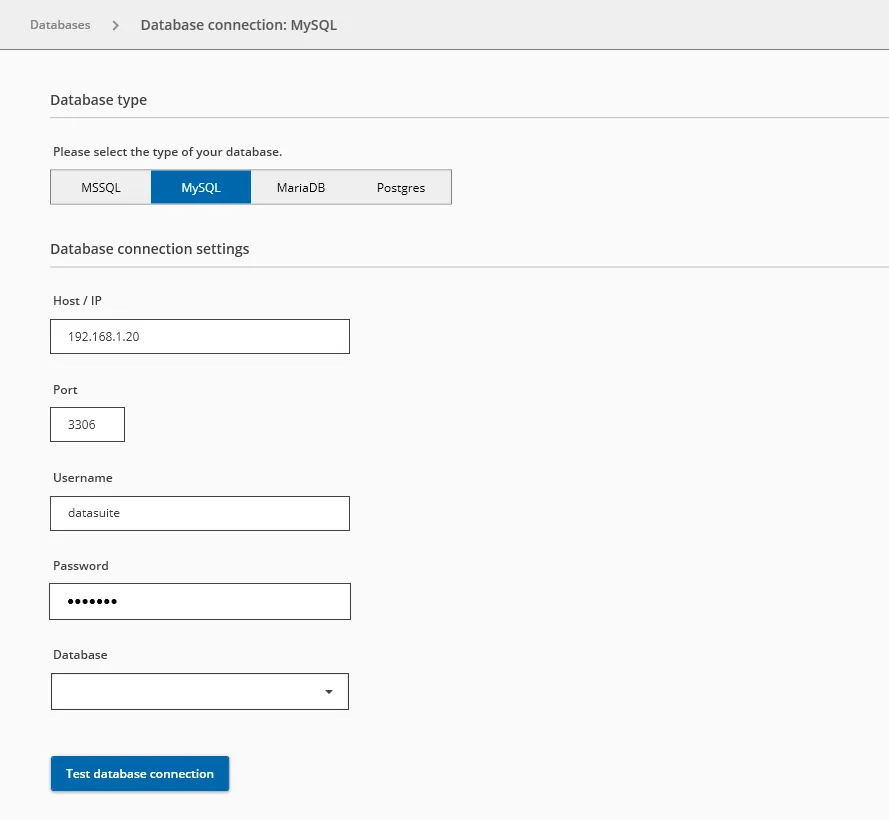
You can find out in detail how to use the imported data blocks to record data sets in the database in the article Connect a PLC to a database in 5 minutes.
Visualising OPC UA data with these tools
Once you have collected the OPC UA data you want to visualise, you can turn to the question of which tools are suitable for visualisation. Here are our recommendations:
1. Grafana for interactive dashboards
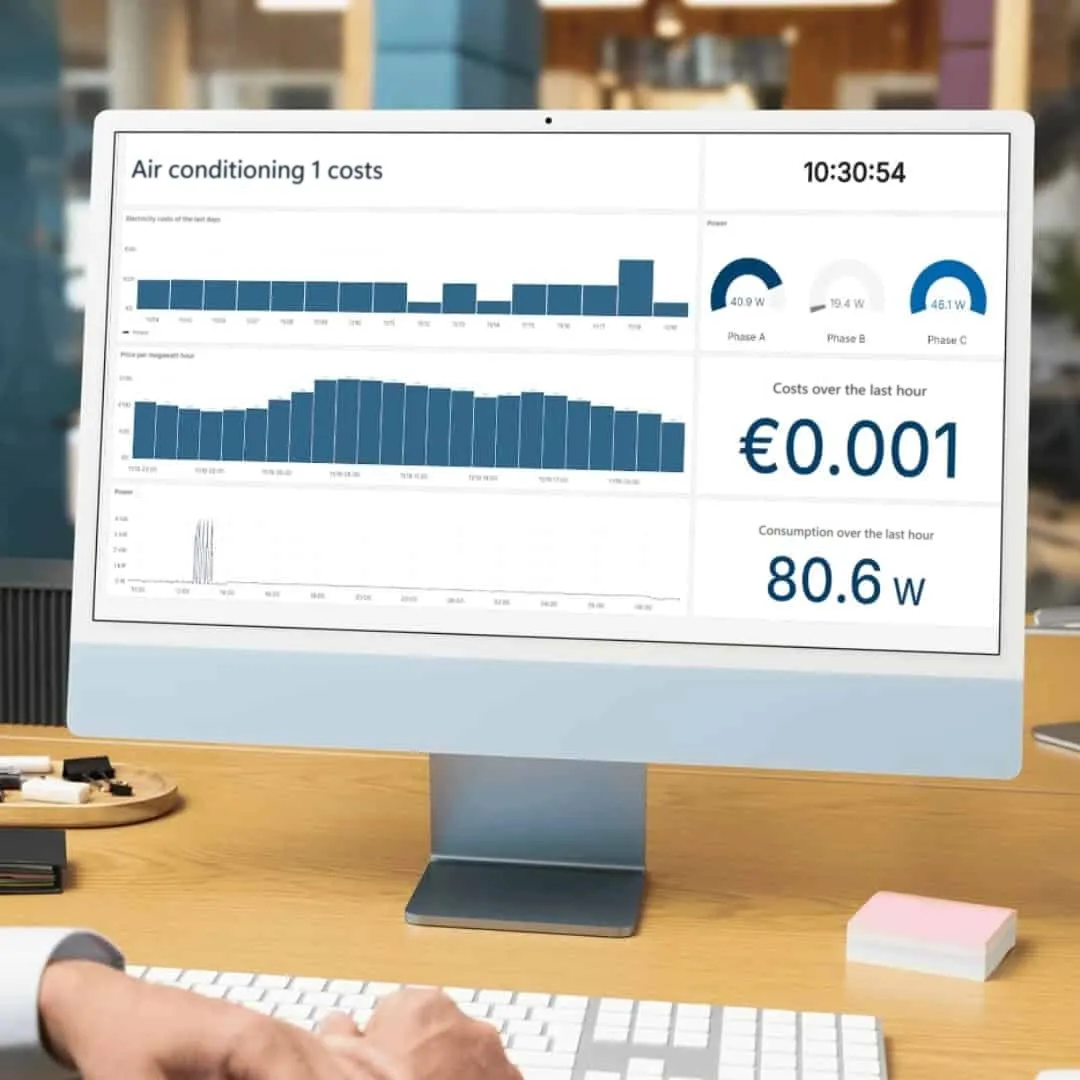
Grafana is free open-source software that you can use to create interactive visualisations. With this software, you can access the database containing the OPC UA data and then create an overview with appealing widgets. We offer support in creating such dashboards. Find out more about our service.
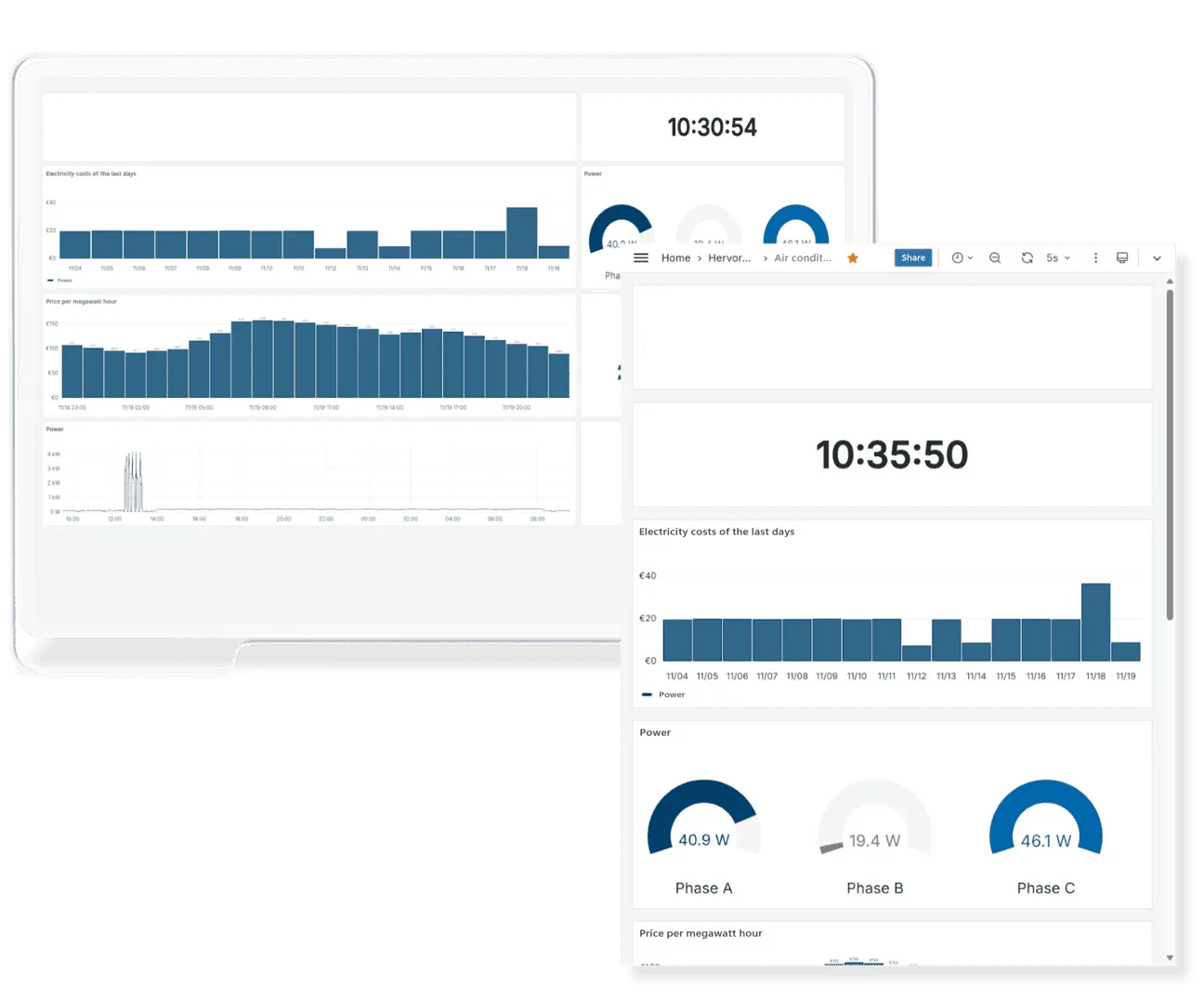
2. DataSuite's integrated web server
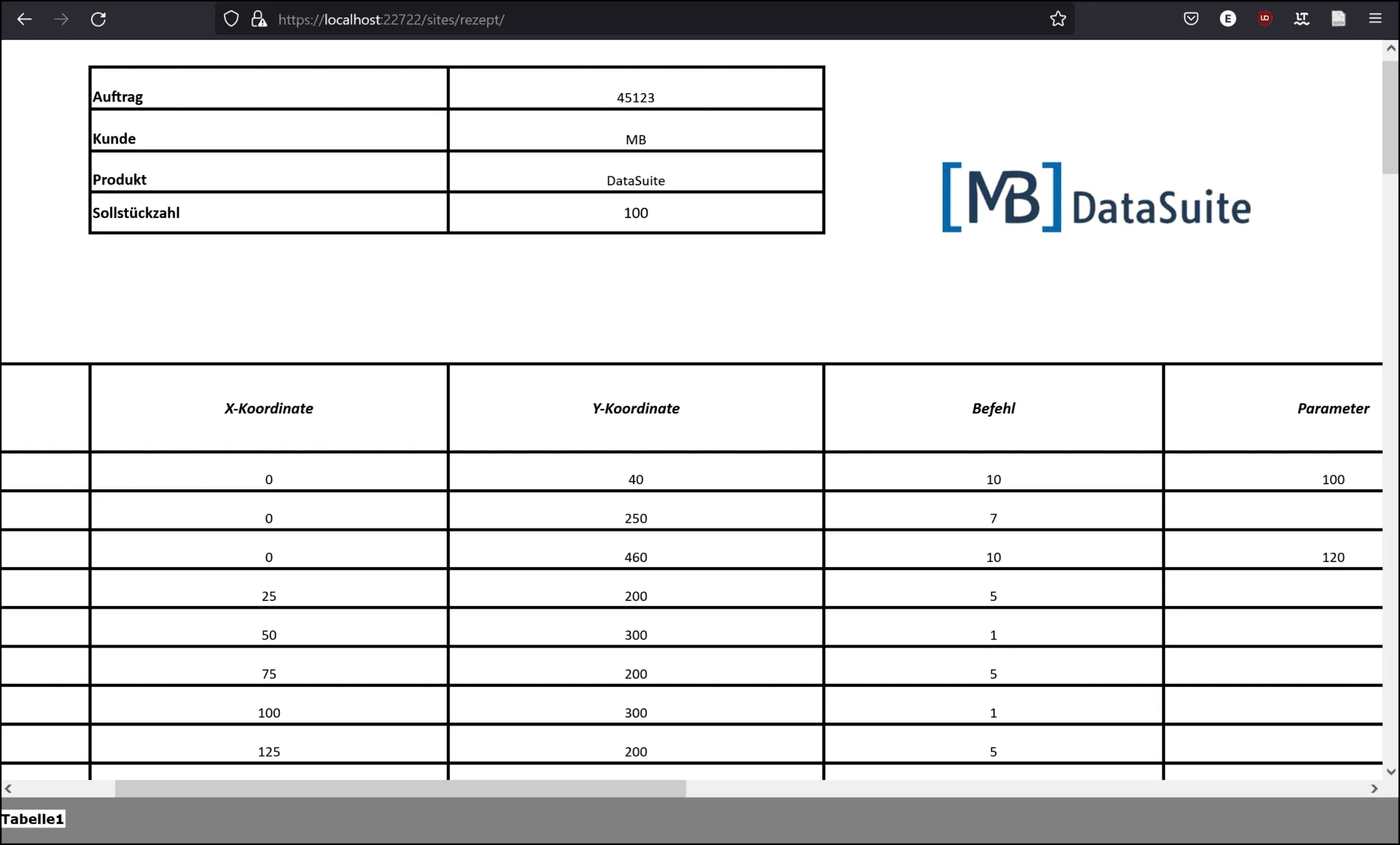
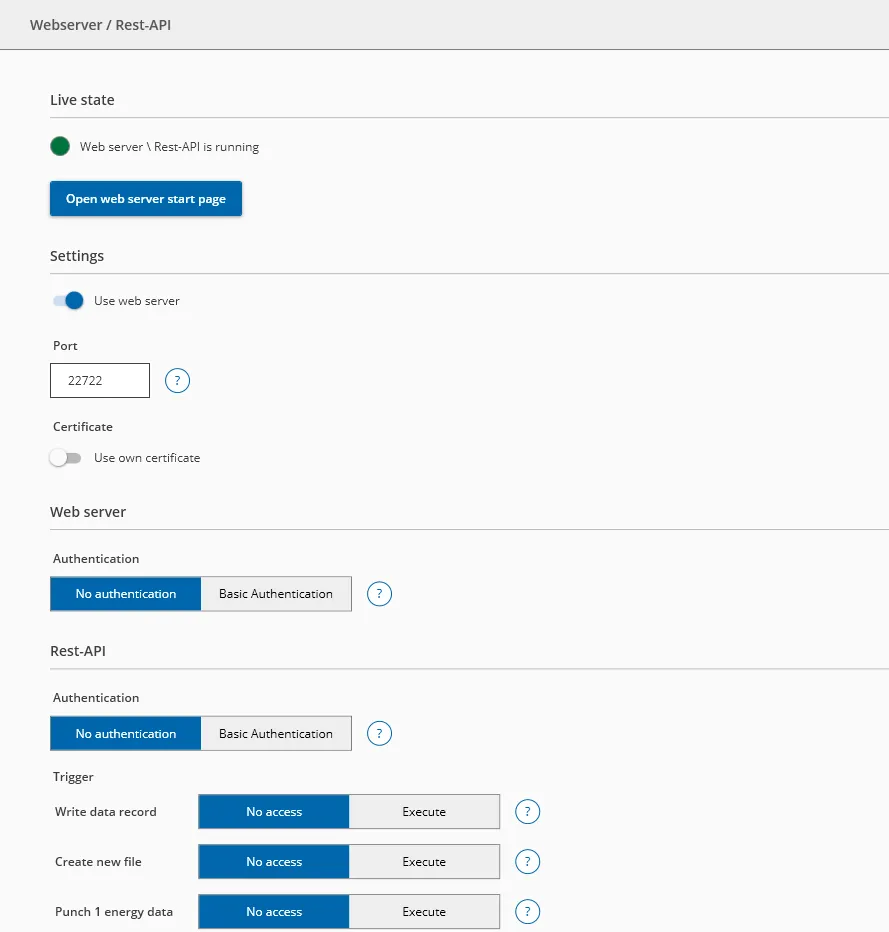
A simple solution: for those who have collected the OPC UA data in an Excel file, DataSuite has an integrated web server. As Excel offers a number of functions for creating charts and tables, you can use it to convert Excel files you have already created into an HTML file and access this web page in the browser via the integrated web server.
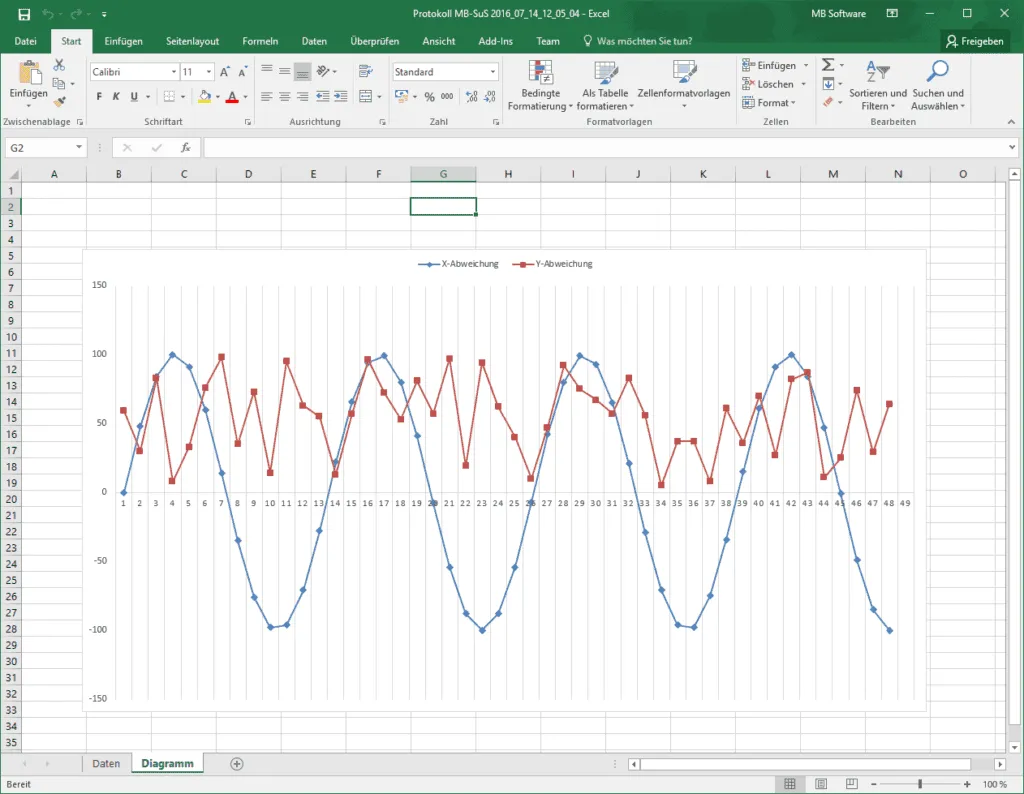
Here is an example of a visualisation of OPC UA data in an Excel file:
You can find much more information and many more setting options in the DataSuite software manual, which is included in the download. It contains detailed instructions with screenshots.
Our team will be happy to provide further information and assistance:
Phone: +49 2742 72927 80
E-mail: [email protected]