Display PLC data in a web browser
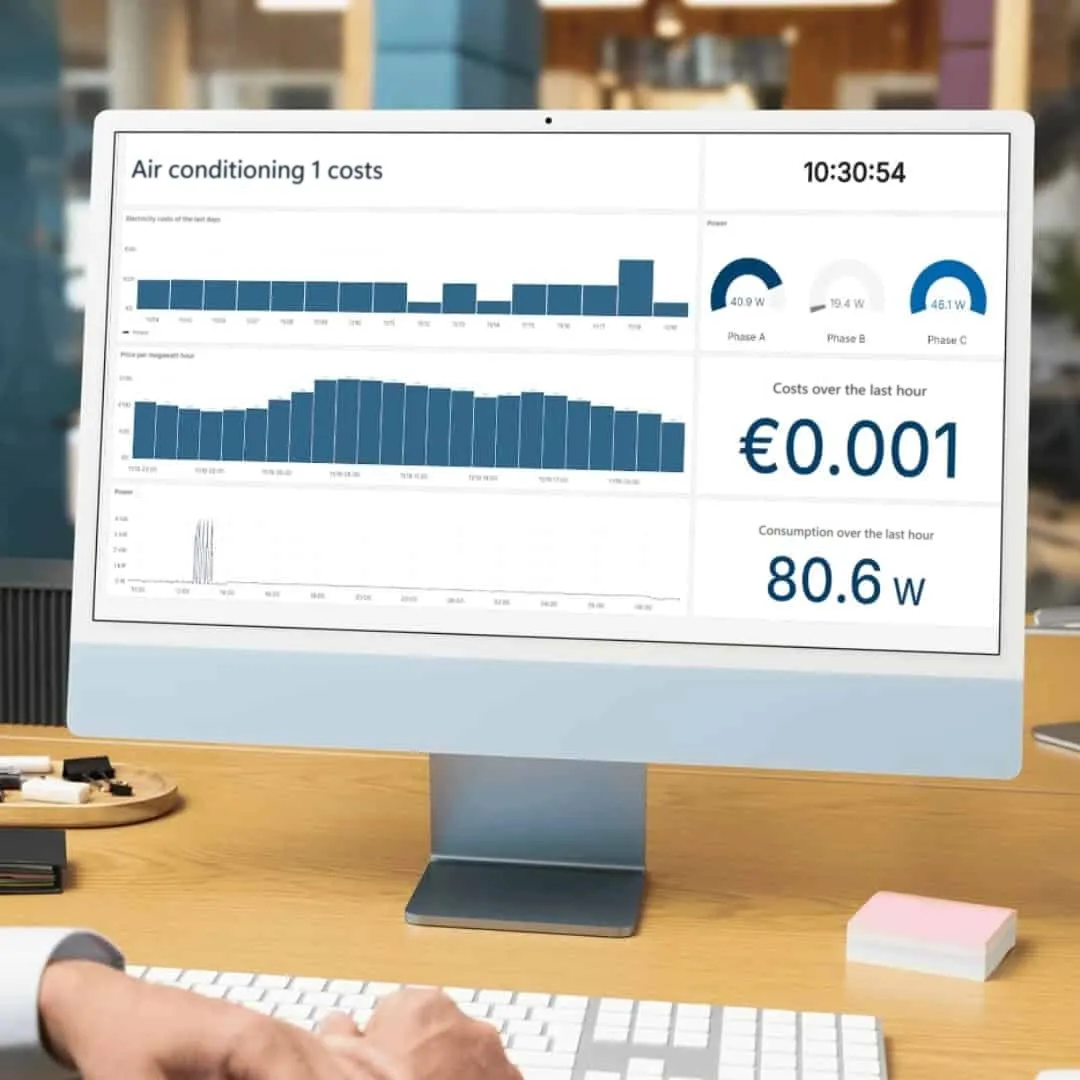
Displaying real-time data on a monitor is often very helpful for keeping track of the current data in production at all times. Unfortunately, many methods of displaying PLC data in a browser involve a great deal of effort. Today we will show you how to do this in just a few minutes.
It’s that easy
Displaying data from the PLC in a browser
The visual presentation and continuous monitoring of production KPIs is becoming increasingly important. Clear, well-prepared figures show the current production status at a glance. There are several methods for displaying data from the PLC outside the production environment, e.g. in the office, on a monitor or on a mobile device. But what if it is a temporary use case and you just want to set something up “quickly”?
Typical challenges:
- HMIs are too expensive or already working at full capacity
- The effort involved in introducing an MES is too high for the small use case
- Technicians and maintenance staff cannot find a solution without programming effort

The solution:
A method that allows you to configure quickly and flexibly which data is displayed in a web browser, when and where.
We have developed a function in the DataSuite software that reads PLC data, writes it to an HTML file and then displays it in a browser, either locally via an integrated web server or on web space. Configuration takes less than an hour.
You can display PLC data in the browser on a monitor in the office, in the production hall, in your home office, on your mobile phone, for management, for the plant manager, etc.
Here’s how:
Display PLC data in the browser with little effort
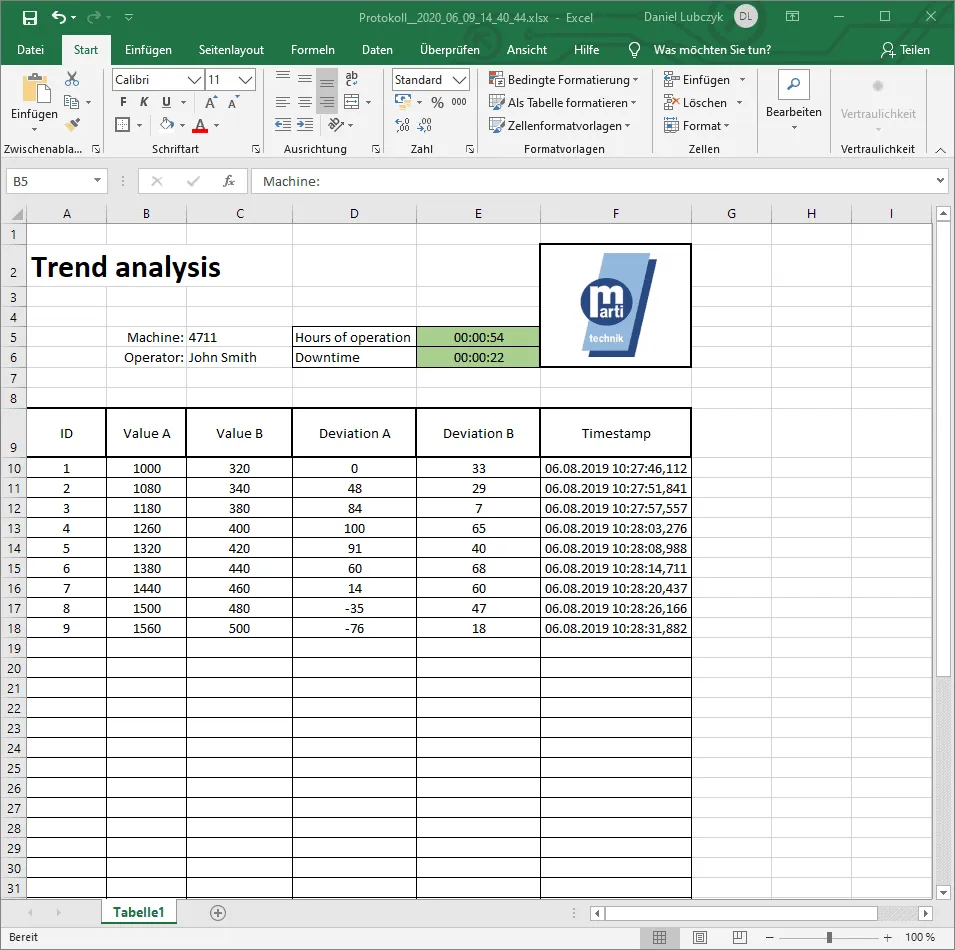
To display PLC data in a web browser, all you need is the DataSuite software. This is not a cloud application. Everything runs locally on your computer within your network. The data is written from your controller to an Excel file. You can then use all Excel functions, e.g. to create charts and formulas. The Excel file is then converted into an HTML file and displayed in the browser with the integrated web server.

And now on to the step-by-step guide:
Step-by-step guide:
Displaying PLC data in the browser
Establishing a connection to the PLC
After installing DataSuite, you can establish a connection to your machine control system (PLC). DataSuite can read data from your PLC or write data to the PLC. In this example, PLC data is to be written to an Excel file.
To do this, click on “Create new PLC” under the “PLCs” menu item and follow the instructions. You can find more information on establishing the connection in the DataSuite manual.
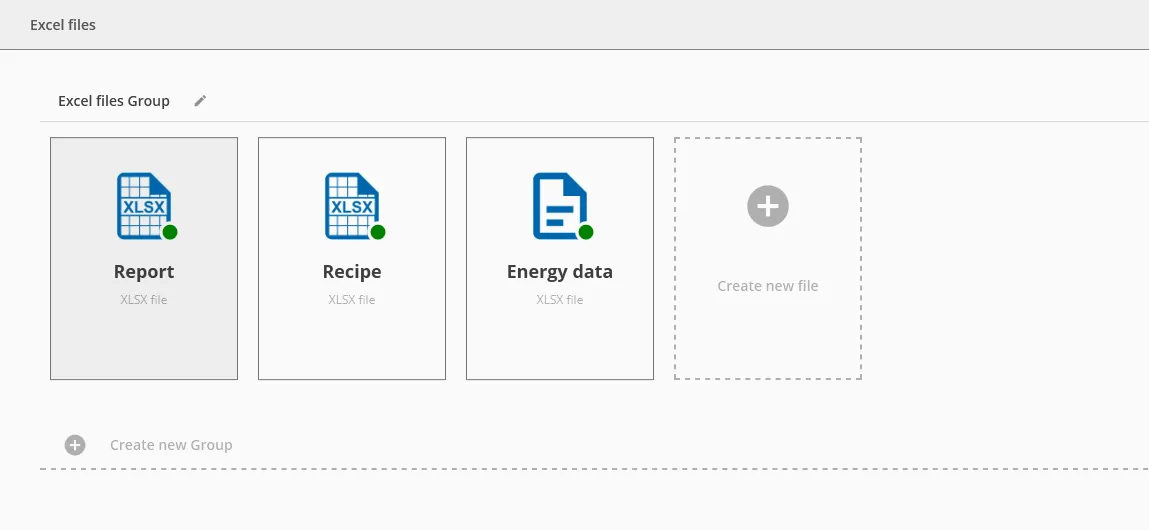
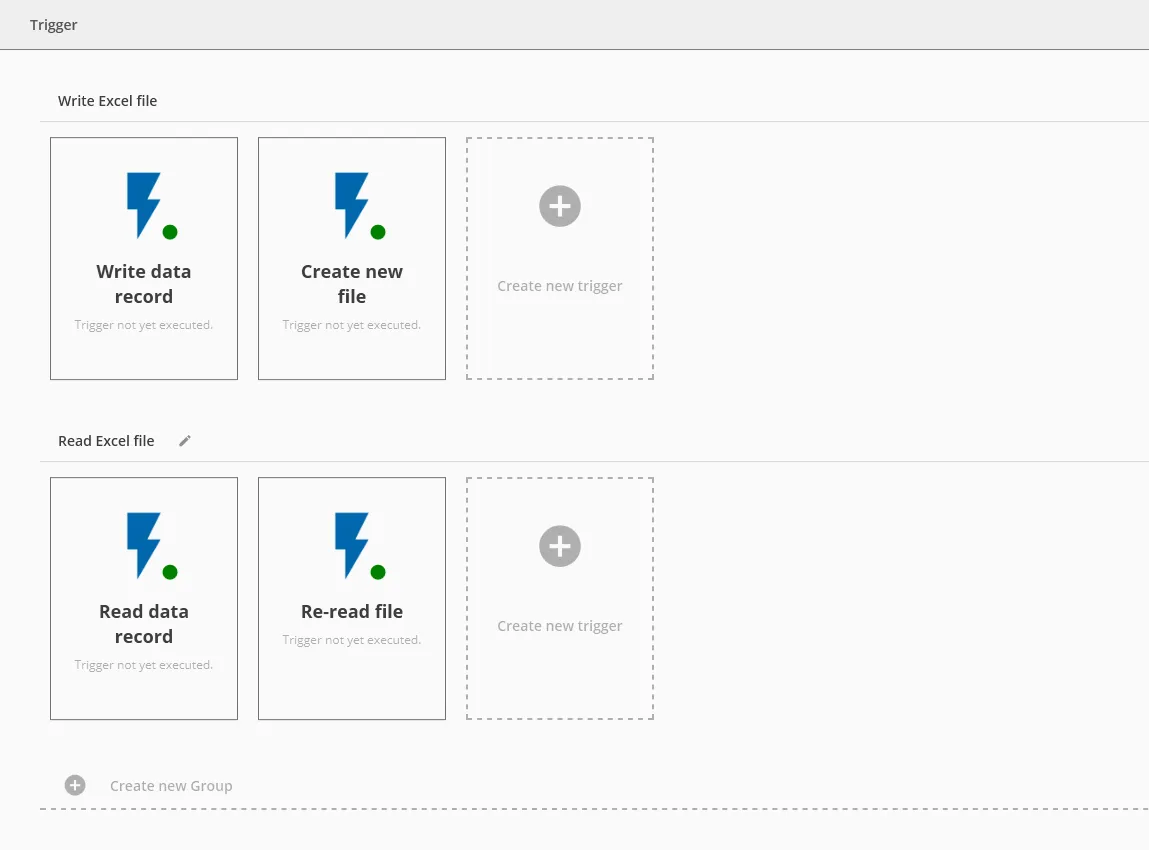
Once you have successfully established the PLC connection and imported your data blocks, you can start with the first step: creating an Excel file for data acquisition. To do this, click on the “Excel files” menu item on the left. There you will already find a template called “Report”. At this point, you can create your own file by clicking on “Create new file”.
Creating a trigger for data acquisition from the PLC
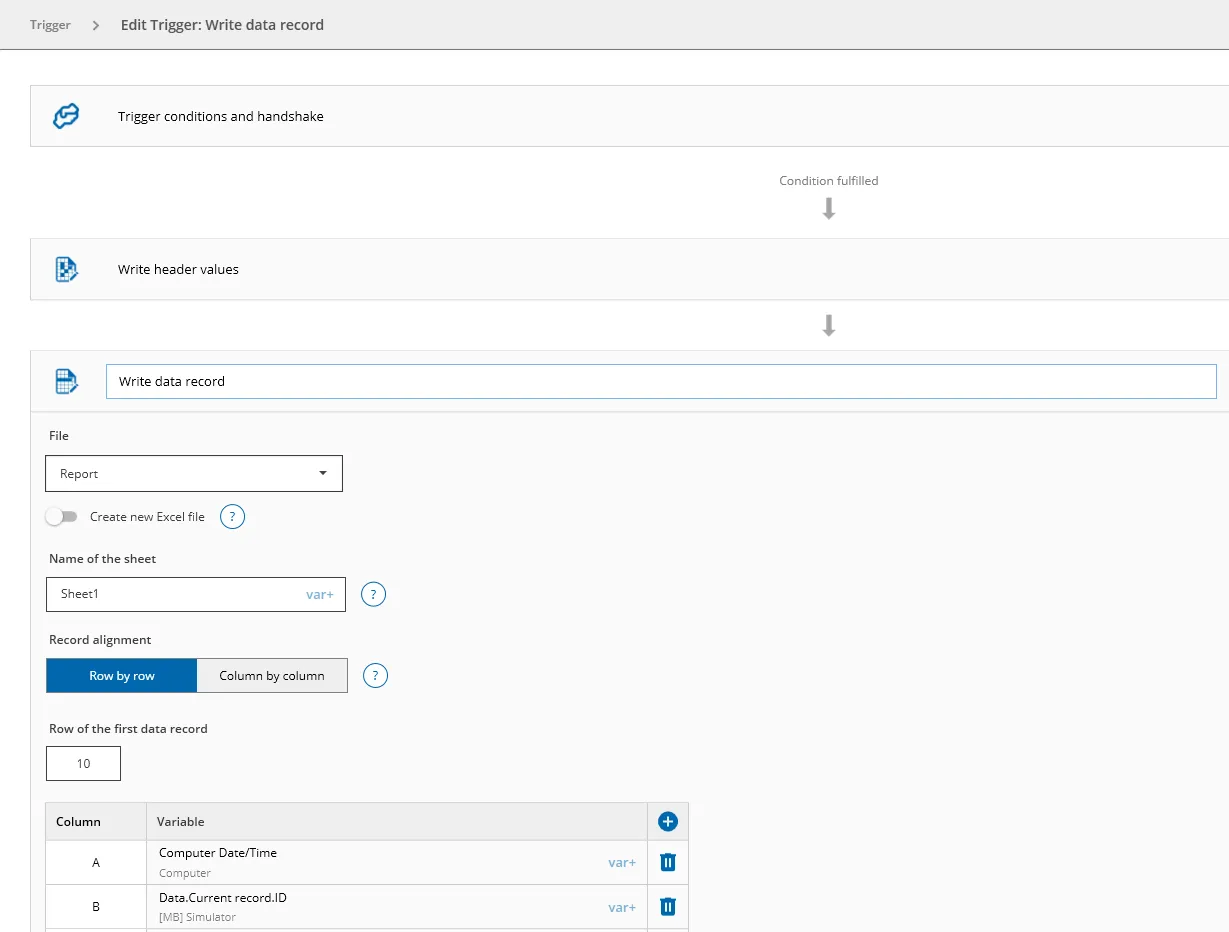
In the next step, we add a new trigger under the “Trigger” menu item. For this, we can use the predefined template “Write data record” by selecting it and then clicking on “Edit”.
Here we can now set up the trigger condition individually. We then select the corresponding Excel file and, under “Write header values” and “Write data record”, link the correct rows and columns to the variables in the machine control system (PLC).
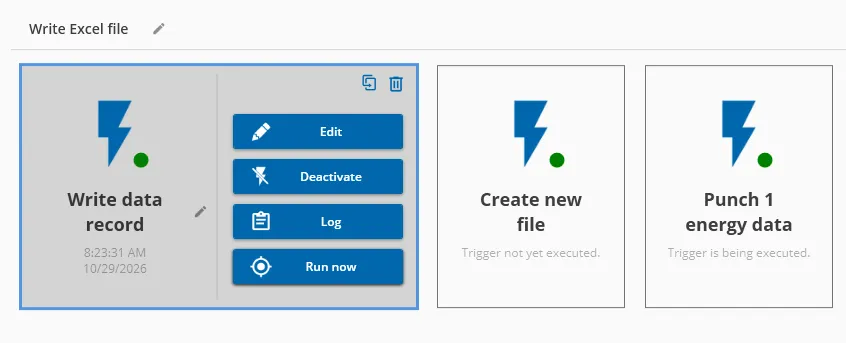
Once we have configured and saved the trigger, the first data records should already be written, depending on the trigger condition. We check this by looking at the log. To do this, we click on the trigger and then on “Log”. In general, the green dot and the timestamp indicate that the execution was successful.
Creating an HTML file from the PLC data
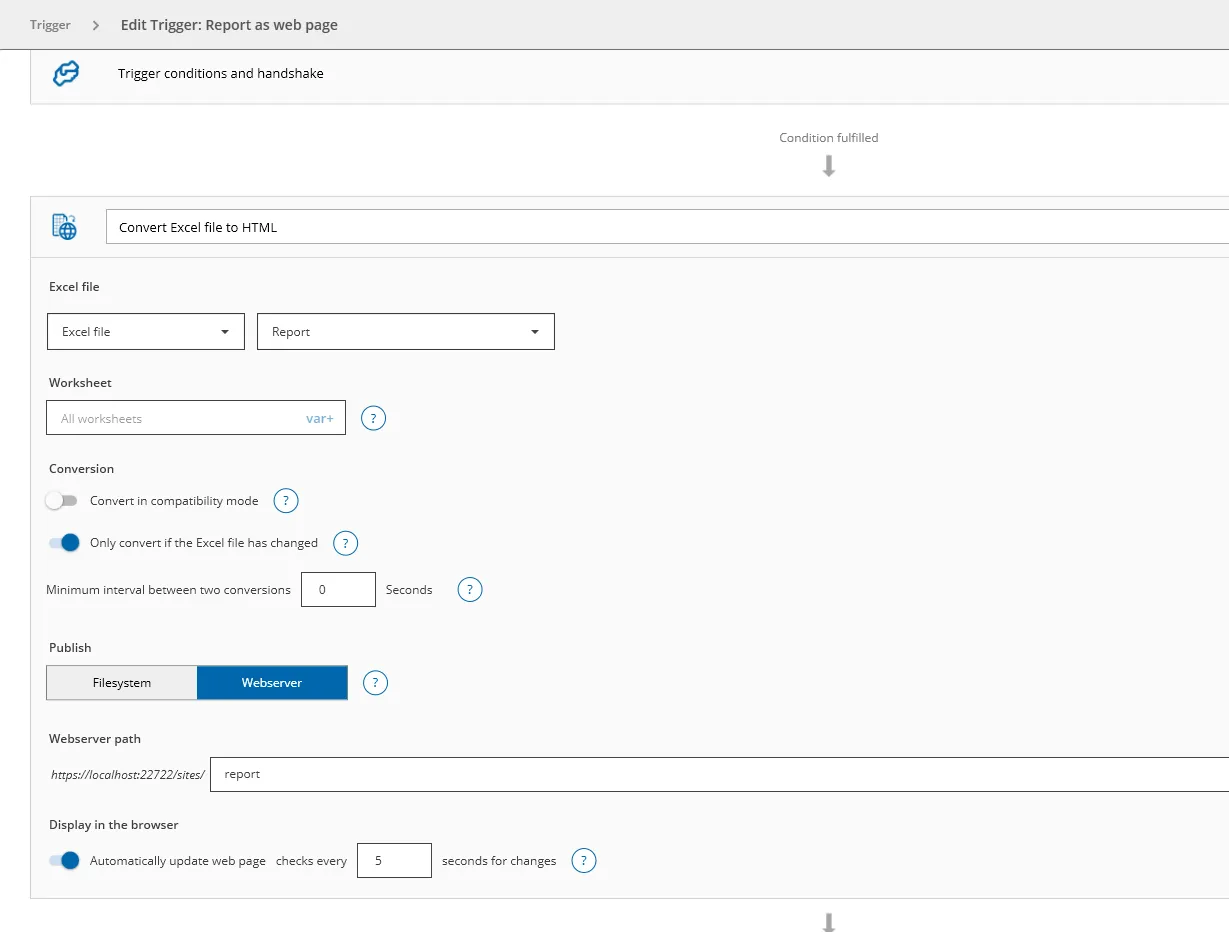
Now click on “Create new trigger” to create a new trigger. Search for “HTML” and choose the trigger “Convert Excel file to HTML”. Select it and click on “Create”.
At this point, you decide whether you want to use the integrated web server or save the HTML file elsewhere in your file system in order to upload it to web space afterwards.
In this case, we select the web server, give the website a name, tick “Update website automatically” and save everything.
Activating the integrated web server for display in the browser
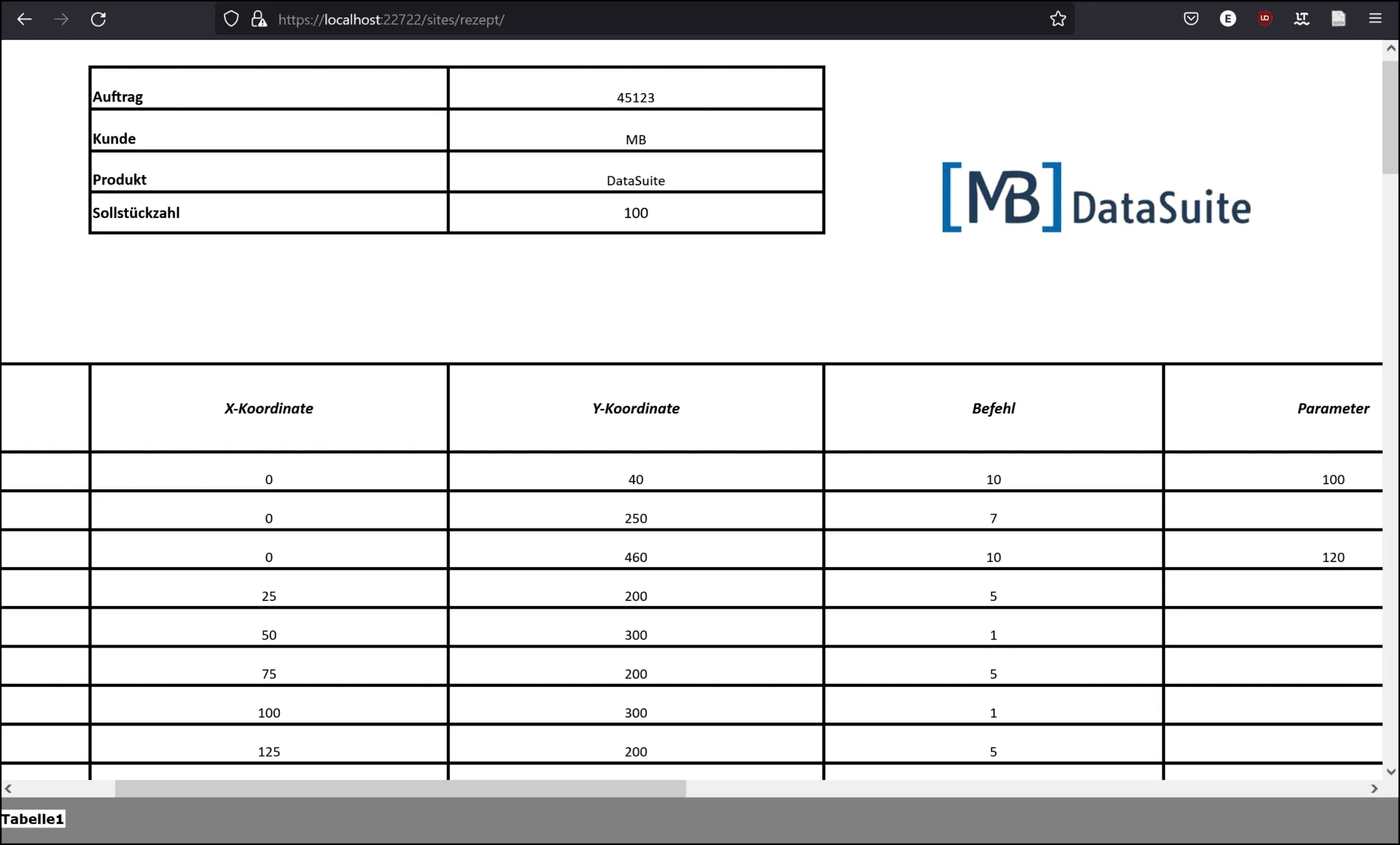
After saving the trigger, we click on “Run now” and switch to the next menu item, “Webserver / Rest-API”. There we tick “Use web server” and can set up our own certificate for security. We can then open the web server path in our browser.
As you can see in the screenshot above, in our case this is “https://localhost:22722/sites/report”.
And here is the result:
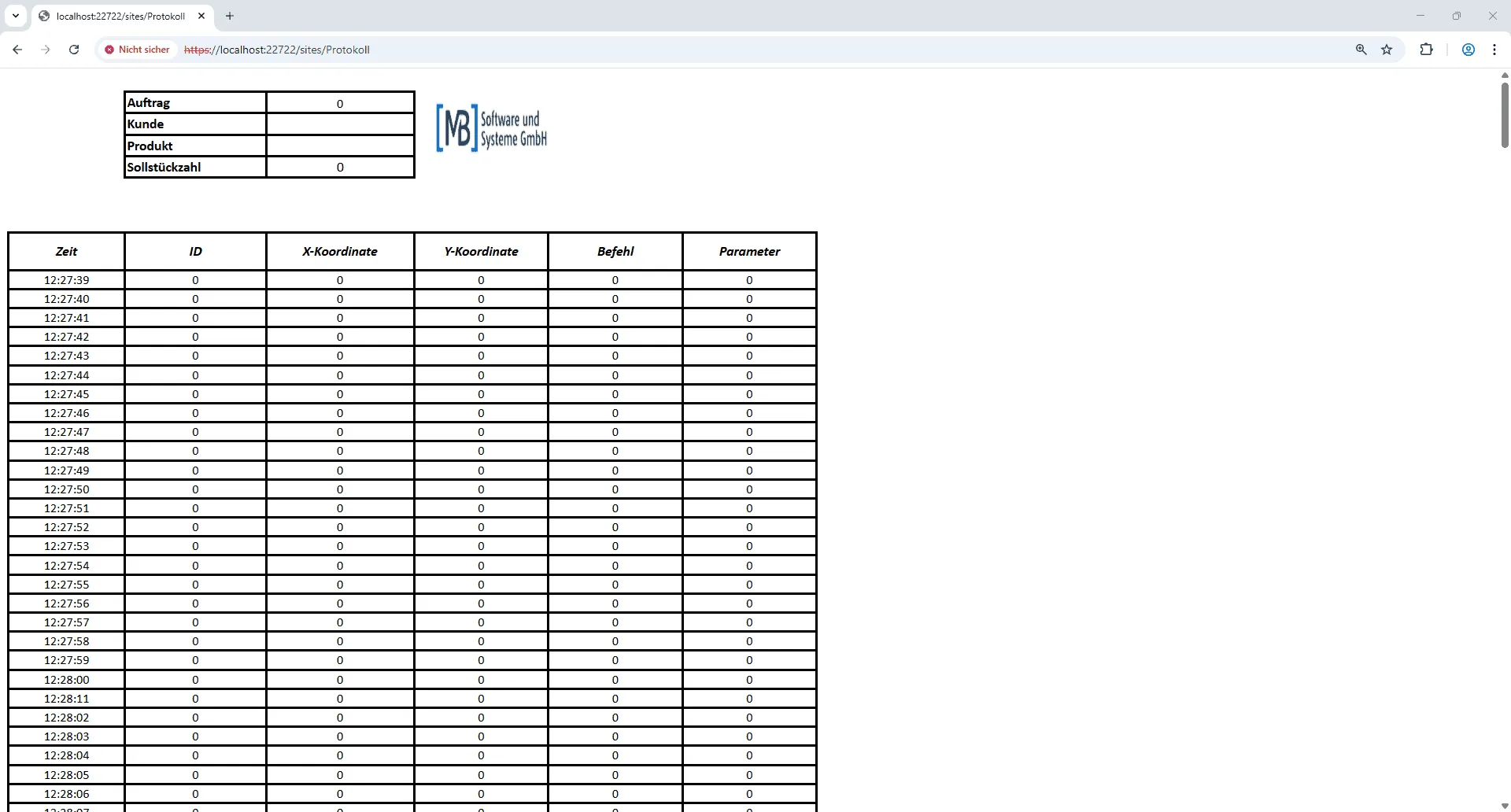
In this case, of course, the file is full of zeros. After all, it was created with the PLC simulator, which does not generate any values. In your case, however, the PLC would continuously generate data, which DataSuite then writes to the file and which can be displayed in your browser with ease.
You can find much more information and setting options in the DataSuite manual, which contains detailed instructions and helpful tips.
Do you have specific questions? Then simply create a support package in DataSuite and describe your request to us. How do I create a support package?
Conclusion
With just a few steps, it is possible to retrieve PLC data from the machine control system and display it as a website in a browser. Everything can be configured individually and flexibly, so that you can set update rates and trigger conditions.